MyChoreBoard Is Now Available on Amazon Fire Tablets
- Jacob Volk
- Product Updates
- 08 Sep, 2026
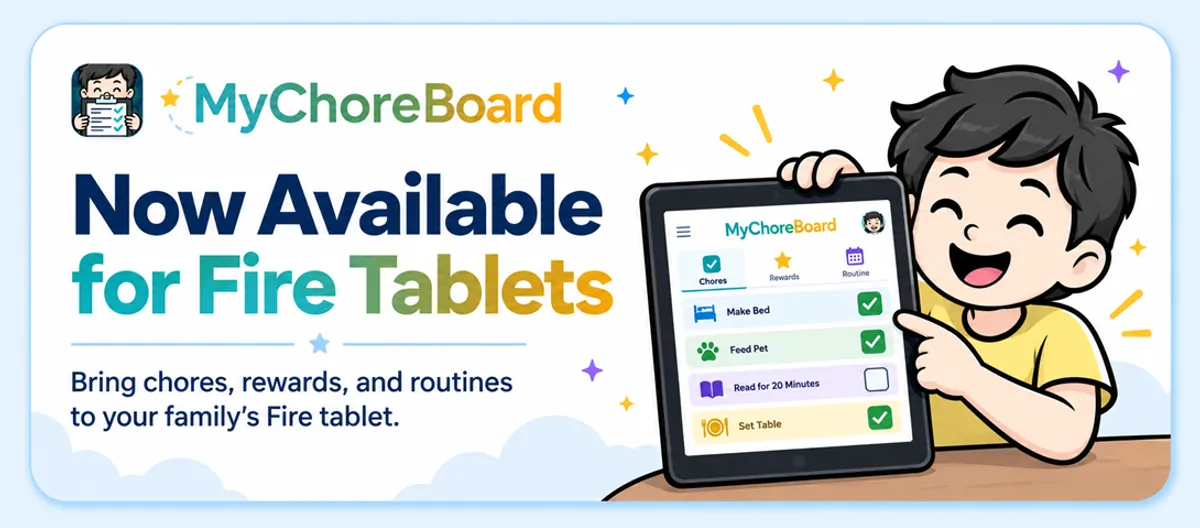
MyChoreBoard is now available in the Amazon Appstore for Fire tablets.
Families using an Amazon Fire tablet can now install MyChoreBoard directly from the Amazon Appstore and use the same family account they already use on the web, iPhone, iPad, or Android.
For families looking for a chore app for kids on a Fire tablet, this also creates another way to turn a tablet into a digital chore chart that children can actually access themselves.
Why an Amazon Fire tablet works well as a chore chart for kids
A chore chart works best when kids can actually see it and use it themselves. That is one reason tablets can work so well for family chores.
Instead of keeping the family’s chore list only on a parent’s phone, a Fire tablet can stay somewhere the kids can reach it. It might be on a kitchen counter, in a child’s room, or in another shared part of the house where checking chores can become part of the daily routine.
With MyChoreBoard, kids can use the Fire tablet to:
- See the chores assigned to them
- Mark chores complete
- See their points update
- Check the rewards they are working toward
- Follow recurring chores and routines without needing a parent to rewrite a chart each day
Parents do not have to stand at the tablet to manage everything. Chores, schedules, points, and rewards can be managed from another phone, tablet, or computer while the Fire tablet stays synced with the same family account.
That can make a Fire tablet useful as something between a traditional refrigerator chore chart and a parent’s task-management app: a child-facing chore board that stays connected to the rest of the family.
What to look for in a chore app for kids on a Fire tablet
A chore app on a child’s tablet should do more than put a parent’s to-do list on another screen.
Kids need to be able to understand what they are supposed to do without a parent walking them through the list every time. For younger children, clear icons and a simple child-facing screen can help. For older kids, seeing what is finished, what is still left, how many points they have, and what rewards they are working toward can give them more ownership of the routine.
It is also useful when the parent and child do not have to use the same type of device.
A parent might manage chores from an iPhone while a child checks them on a Fire tablet. Another parent might use Android. A shared tablet might stay in the kitchen while everyone else uses their own device elsewhere.
MyChoreBoard was built around that kind of setup. The child-facing views focus on chores, progress, points, and rewards, while the parent tools can be used separately from another device.
How to install MyChoreBoard on an Amazon Fire tablet
Getting started is simple:
- Open the Amazon Appstore on your Fire tablet
- Search for MyChoreBoard
- Install the app
- Open MyChoreBoard
- Create a family account or sign in with your existing account
If your family already uses MyChoreBoard, there is nothing to transfer. Sign in with the same account and your family setup will be there.
How to use MyChoreBoard in an Amazon Kids child profile
MyChoreBoard also works inside an Amazon Kids child profile on a Fire tablet. Families using MyChoreBoard have confirmed this setup works, which means a child can stay in their protected Amazon Kids profile and still open their chore board.
First, install MyChoreBoard from the Amazon Appstore using the adult profile on the Fire tablet. Then share the app with the child’s Amazon Kids profile.
Add MyChoreBoard from the Fire tablet
Amazon’s current Fire tablet settings allow parents to share apps and other content with a child profile from the device itself.
- Switch to your child’s Amazon Kids profile
- Tap the Grownups menu in the upper-right corner
- Select Manage Content
- Choose Library
- Select an adult profile and enter the parent PIN when prompted
- Find MyChoreBoard and select it
- Tap Done
- Return to the child’s profile and open MyChoreBoard
- Sign in with your existing MyChoreBoard family account
Amazon documents this same Grownups → Manage Content process for adding content to a child profile in its Fire Tablet child profile settings.
Once MyChoreBoard is available in the child profile, the child can stay inside Amazon Kids while checking chores, completing tasks, seeing points, and working toward rewards.
Add MyChoreBoard with Amazon Parent Dashboard
You can also manage content from Amazon Parent Dashboard instead of doing it directly on the Fire tablet.
- Open Amazon Parent Dashboard in a browser or the Parent Dashboard app
- Open the Content menu
- Select the child profile you want to manage
- Choose Amazon content
- Find MyChoreBoard and turn access on for that child
Amazon provides more detail in its Add Content to a Child Profile instructions.
Amazon occasionally changes the wording or location of Fire tablet settings, so the labels on your device may vary slightly by Fire OS version.
Which Fire tablet works best for a chore chart?
You do not need a special Fire tablet to use MyChoreBoard. If you already have a Fire tablet at home, that is usually the best place to start.
If you are buying a tablet specifically for chores, the best choice depends on how you plan to use it. A standard Fire HD 10 can make sense for a shared kitchen screen or WallBoard, while a Fire Kids model may be a better fit for a younger child who will use the tablet as their own device.
Here are two common options:
Fire tablet options for a chore chart
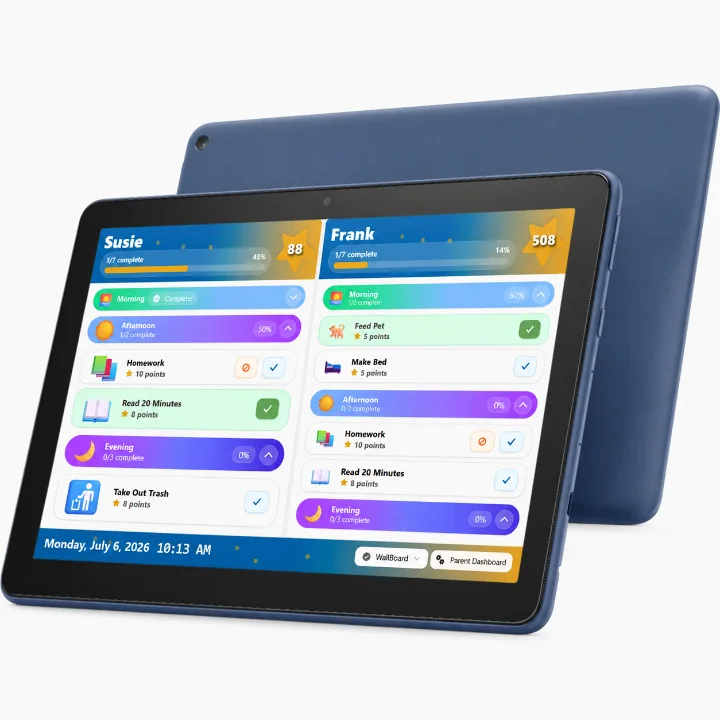
Amazon Fire HD 10 Tablet
Full HD display is perfect for MyChoreBoard and also brings brilliant color to all your shows and games.
Amazon Fire HD 10 Kids Tablet
Perfect tablet for MyChoreBoard for younger kids.
Affiliate Disclosure: As an Amazon Associate, we earn from qualifying purchases.
Turn a Fire tablet into a shared digital chore chart
A Fire tablet does not have to belong to only one child.
If your family prefers one central screen, a Fire tablet can stay in the kitchen, mudroom, family room, or another shared location and act as the household’s digital chore chart.
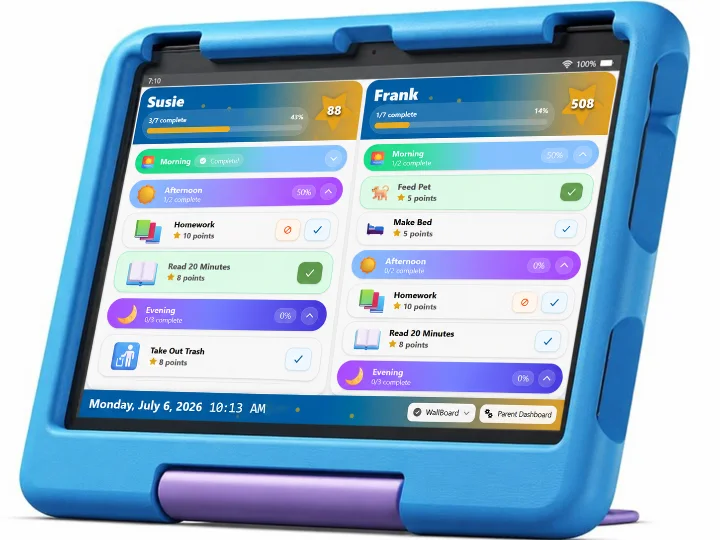
WallBoard Mode displays multiple children’s chore boards together on one screen. Each child can still have their own chores and point balance, while the family gets one predictable place to check the day.
This can be especially useful if you like the visibility of a refrigerator chore chart but do not want to keep rewriting chores, adding up points, or manually resetting the chart.
Parents can continue managing chores and rewards from their own phones or computers while the shared Fire tablet remains available to the kids.
For more ideas about setting up a tablet this way, see our Digital Chore Chart for Kids guide.
Use a Fire tablet for the kids and another device for the parents
Everyone in the family does not need to use the same kind of device.
MyChoreBoard can be used across:
- Amazon Fire tablets
- iPhone and iPad
- Android phones and tablets
- Computers and other devices using the web app
A child might check chores on a Fire tablet while a parent updates tasks from an iPhone at work. Another parent might use Android. A shared Fire tablet might stay in the kitchen while the adults manage the family from their own devices.
The devices can be different. The family’s chores, points, rewards, and settings stay together in the same MyChoreBoard account.
That flexibility can also be useful across two homes or when different children use different devices.
Fire tablet chore chart vs. a paper chore chart
A paper chore chart can work very well, especially when the routine is simple and someone is happy to keep it updated.
The difference is the maintenance behind the chart.
With a paper, magnetic, or dry-erase chore chart, a parent usually has to reset completed chores, rewrite changing schedules, keep track of points, and remember reward balances. A digital chore chart can handle much of that bookkeeping while still giving kids a visible place to see what they need to do.
Using a Fire tablet does not mean every child needs their own screen either. One shared tablet can act as the family chore board, or a child can use a Fire tablet they already have while the parent manages MyChoreBoard somewhere else.
If a physical chart is already working for your family, there is no reason to replace it just because an app exists. Digital becomes especially useful when keeping the chore chart updated is starting to feel like another chore for the parent.
For a deeper comparison, see Printable vs. Digital Chore Charts.
MyChoreBoard now gives families four easy ways to get started
You can use whichever option works best for each device in your home. They all connect to the same MyChoreBoard family account.
Web app
Use the Web App
Fastest way to start
Works on phones, tablets, and computers. No app store required.
- Great for getting a family set up right away.
- Use the same account across devices.
iPhone & iPad
Download on the App Store
Best for iPhone and iPad
Install the native iOS version from Apple’s App Store.
- Best choice for Apple mobile devices.
- Use the same account across devices.
Android
Get it on Google Play
Best for Android phones and tablets
Install the Android version from Google Play.
- Best choice for Android mobile devices.
- Use the same account across devices.
Amazon Fire
Get it on the Amazon Appstore
Best for Amazon Fire tablets
Install MyChoreBoard directly from the Amazon Appstore on your Fire tablet.
- Best choice for Amazon Fire tablets.
- Use the same account across devices.
Frequently asked questions
Yes. MyChoreBoard is free for families on Amazon Fire tablets, just like the web, iPhone, iPad, and Android versions.
Yes. Families using MyChoreBoard have confirmed that the app works inside Amazon Kids child profiles. Install MyChoreBoard from the Amazon Appstore, then share it with the child’s profile using Manage Content on the Fire tablet or Amazon Parent Dashboard.
No. MyChoreBoard can be installed directly from the Amazon Appstore on a Fire tablet. Google Play is not required.
Yes. Different family members can use different device types with the same family account. Chores, points, rewards, and family settings stay synced.
Yes. A Fire tablet can be shared by multiple children. Families can switch between child views, or use WallBoard Mode to show multiple children’s chore boards together on a shared household screen.
Yes. A Fire tablet can be used for an individual child view or as a shared household display with WallBoard Mode. A shared tablet can stay in a central location while parents manage chores from their own devices.
No. If you already use MyChoreBoard, sign in with your existing family account. Your family’s chores, points, rewards, and settings stay with that account.

Ready to try MyChoreBoard with your kids?
Install on any phone, tablet or computer. Free with no sign-in hoops.