How to Save MyChoreBoard to Your Home Screen and Use It Like an App
- Jacob Volk
- Parenting , Setup Guide , How To , Family Tech
- 17 Feb, 2026
A lot of parents hear the phrase Progressive Web App and assume it is something technical or developer-y.
It is not.
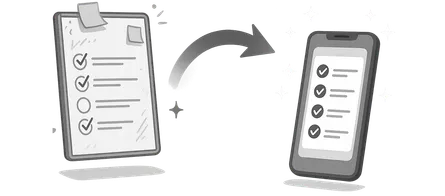
In real life, it simply means you can save MyChoreBoard to your phone, tablet, or family device and open it from the home screen just like you would any other app.
MyChoreBoard works as a PWA which means you can add it to your home screen, tap one icon, and make it feel like part of your family routine instead of just another website.
Why this matters for families
When something is easy to open, families use it more consistently.
Parents are far more likely to keep up with chores, rewards, and routines when MyChoreBoard is:
- One tap away
- Easy for kids to find
- Set up on a shared tablet
- Able to open like a dedicated app
That is the real value of a PWA. It removes friction.
Instead of saying:
- “Open Safari”
- “Go to the website”
- “Find the bookmark”
You can just say:
- “Tap MyChoreBoard”
How to save MyChoreBoard to your iPhone home screen
If you use an iPhone or iPad, the easiest path is through Safari.
It only takes a few seconds:
- Open Safari
- Go to MyChoreBoard
- Tap the Share button
- Scroll down and tap Add to Home Screen
- Tap Add
Once you do that, MyChoreBoard will appear on your home screen with its own icon. From there, you can launch it the same way you launch your other apps.
This is a great setup for:
- a parent phone
- a child tablet
- a kitchen counter tablet
- a dedicated family routine device
How to save MyChoreBoard to your Android home screen
On Android, the wording can vary a little depending on the browser and device, but the idea is the same.
In Chrome, the usual steps are:
- Open Chrome
- Go to MyChoreBoard
- Tap the three-dot menu
- Tap Add to Home screen or Install app
- Confirm
After that, MyChoreBoard can live on the home screen and feel much more like a normal installed app.
For many families, this is one of the easiest ways to turn an inexpensive Android tablet into a dedicated MyChoreBoard device.
So does a PWA actually work like a regular app?
In a lot of everyday ways, yes.
A PWA can:
- open from the home screen
- have its own app icon
- launch in a more app-like window
- feel cleaner and more focused than a normal browser tab
That does not mean a PWA is identical to every App Store or Play Store app in every situation. But for daily family use, it can feel extremely close.
For MyChoreBoard, that means the experience is more natural for things like:
- morning routines
- after-school chores
- evening checklists
- reward tracking
- quick parent updates
Why families love this setup
One of the best uses for a PWA is putting it on a shared household device.
A tablet on the kitchen counter, mudroom shelf, or family command center can become a dedicated MyChoreBoard screen without needing a complicated install process.
That makes it easier to:
- check chores before school
- see what still needs to be done
- open rewards quickly
- build a routine around one consistent device
The easier MyChoreBoard is to open, the more naturally it fits into family life.
What a PWA does not mean
There is one important clarification.
A PWA is not just a shortcut or bookmark in the old-fashioned sense. It is designed to behave more like an app than a normal saved webpage.
That said, a PWA is also not always identical to a fully native app downloaded from an app store. Some features can vary a bit by device, browser, and operating system.
For most MyChoreBoard users, though, the big benefit is simple:
it is fast, convenient, and feels like an app where it counts.
Best devices for adding MyChoreBoard to the home screen
This works especially well on:
- an iPhone for parents
- an Android phone for quick access
- an iPad used around the house
- a small Android tablet mounted or left in a shared area
If your goal is to make MyChoreBoard part of your daily routine, saving it to the home screen is one of the easiest upgrades you can make.
Frequently asked questions
A PWA, or Progressive Web App, is a web app that can be saved to your device and used in a more app-like way. It can have its own icon, launch from the home screen, and feel more like a regular app than a normal website.
Yes. Open MyChoreBoard in Safari, tap the Share button, then tap Add to Home Screen.
Yes. On Android, open MyChoreBoard in Chrome, tap the menu, then choose Add to Home screen or Install app if your device shows that option.
In many important ways, yes. It can launch from its own icon and open in a cleaner, more app-like view. While PWAs are not always identical to native App Store apps, they feel very close for everyday use.
No. One of the nice things about a PWA is that you can go straight to the web app and add it to your home screen without a traditional app store install.
Ready to try MyChoreBoard with your kids?
Install on any phone, tablet or computer. Free with no sign-in hoops.
Get Started Now