How to Add MyChoreBoard to DAKboard: Build a Custom Family Command Center
- Jacob Volk
- Chore Apps , MyChoreBoard Guides , Family Command Center
- 14 Oct, 2026
I have used DAKboard as our kitchen calendar for years, including before DAKboard supported touchscreens. What has always kept me using it is the customization: backgrounds, colors, fonts, block sizes, layouts, calendars, photos, weather, and integrations can all be arranged almost however you want. Adding MyChoreBoard to that setup turned out to be surprisingly simple.
The entire MyChoreBoard integration was basically this:
Add a Website/iframe block to a DAKboard Custom Screen and point it to https://app.mychoreboard.com.
That was it. MyChoreBoard loaded normally, and because MyChoreBoard was designed web-first, resizing the block worked exactly the way I hoped.
The more interesting question is not whether MyChoreBoard works on DAKboard. It does. The more interesting question is when it makes sense to combine them, what hardware to use, and how far you can take the idea of a family command center.
How I tested this setup
- I have used DAKboard for years as a kitchen family calendar.
- My long-running kitchen setup has used a Raspberry Pi with a 24-inch display in landscape orientation.
- I also use DAKboard’s browser preview on a portrait monitor at my desk when building and testing layouts.
- I added MyChoreBoard with DAKboard’s Website/iframe block and tested it in the browser preview.
- I experimented with DAKboard’s Family Chores Manager so I could compare the built-in chore experience with MyChoreBoard.
- I have not personally tested every DAKboard integration or every hardware option discussed below. Where I describe broader DAKboard capabilities, I separate those documented features from my own hands-on experience.
- Disclosure: This is not a sponsored DAKboard article. I am the creator of MyChoreBoard and have used DAKboard in my own home for years. DAKboard did not provide hardware, pay for this article, or review it before publication.
Quick verdict
| Question | My experience |
|---|---|
| Does MyChoreBoard work inside DAKboard? | Yes. The Website/iframe block worked immediately with app.mychoreboard.com. |
| Do I need a paid DAKboard plan? | Yes for the custom-screen Website/iframe setup described here. DAKboard’s Essential plan is the practical starting point. |
| Would I pay for DAKboard just to show MyChoreBoard? | No. If MyChoreBoard is the only thing you want on the screen, I would simply open MyChoreBoard directly in a browser on an Android or similar setup. |
| What is DAKboard’s biggest advantage? | Customization. It is dramatically more configurable than appliance-style family calendars. |
| Is DAKboard difficult? | More setup up front, but absolutely manageable for a normal parent. It is especially good for someone who enjoys tinkering. |
| Is it stable once configured? | That has been my experience. I think of it as something you can set up and then largely leave alone. |
| Does DAKboard already have chores? | Yes. Its Family Chores Manager is capable, but in my testing it felt more like an advanced family to-do list with points and rewards than a purpose-built chore app for kids. |
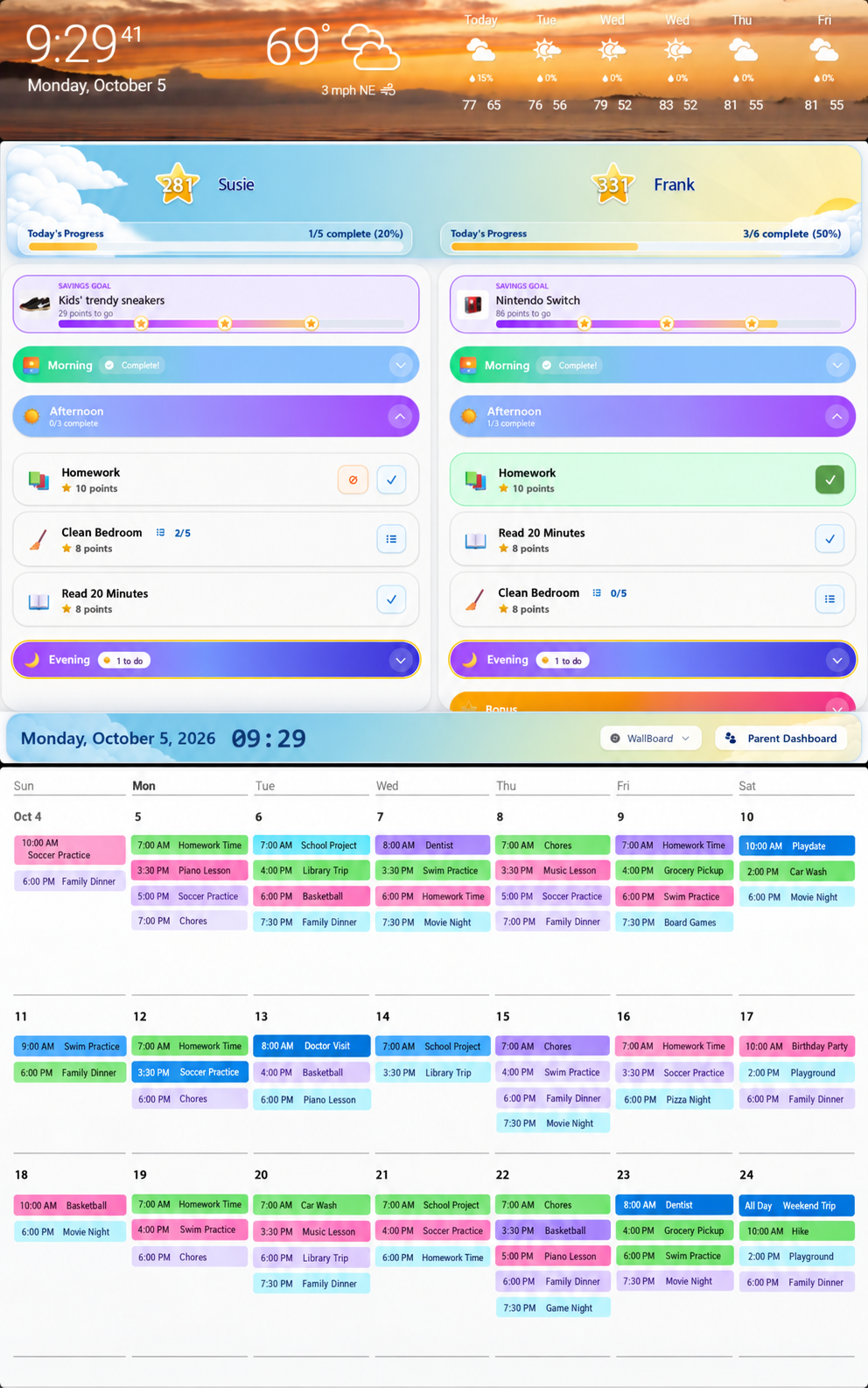
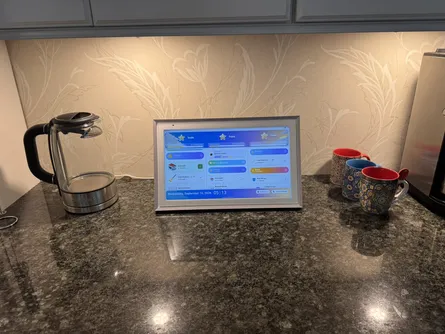
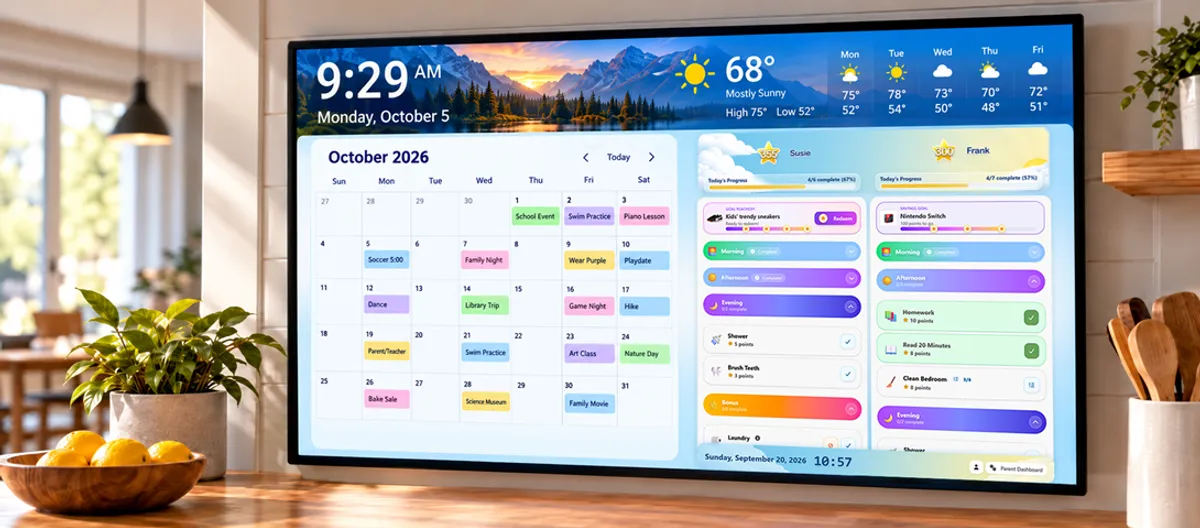
One example of a portrait DAKboard layout with MyChoreBoard, weather, and a family calendar. The size and placement of each block can be changed.
Why DAKboard has stayed in my kitchen for years
I started using DAKboard before it had touchscreen support. For us, its original job was simple: be the family calendar in the kitchen.
What made it stick was how little DAKboard tried to dictate what my screen should look like.
I could change the background. I could change colors and fonts. I could decide how many days of calendar I wanted visible, how large the calendar should be, whether photos should share the screen, where weather should sit, and how much space everything received.
That freedom is still the biggest reason I like DAKboard.
My original kitchen system used a Raspberry Pi and a 24-inch monitor in landscape orientation. At my desk, I also use DAKboard’s web preview on a portrait display when I want to experiment with different screen designs.
That is a fundamentally different philosophy from a dedicated family-calendar appliance.
With an appliance, the manufacturer generally decides what the experience looks like and you configure your information inside it.
With DAKboard, you are much closer to designing your own family dashboard.
How to add MyChoreBoard to DAKboard
The actual MyChoreBoard setup is much easier than the rest of this article might make it sound.
DAKboard supports a Website/iframe block on Custom Screens with a paid subscription. MyChoreBoard supports being embedded, so there was no custom code or special integration required.
Step 1: Use a DAKboard Custom Screen
For the setup in this article, you need a paid DAKboard plan that allows Custom Screens and the Website/iframe integration.
DAKboard’s current Essential plan is the logical entry point. When I checked in October 2026, it was $6/month or $5/month when billed annually and included two Custom Screens, up to five calendars, custom layouts, all integrations, screen templates, custom CSS, and community templates.
Prices and plan details can change, so I would still check DAKboard’s current pricing before subscribing.
Step 2: Add a Website/iframe block
Open your Custom Screen, choose Add a Block, and search for the Website/iframe block.
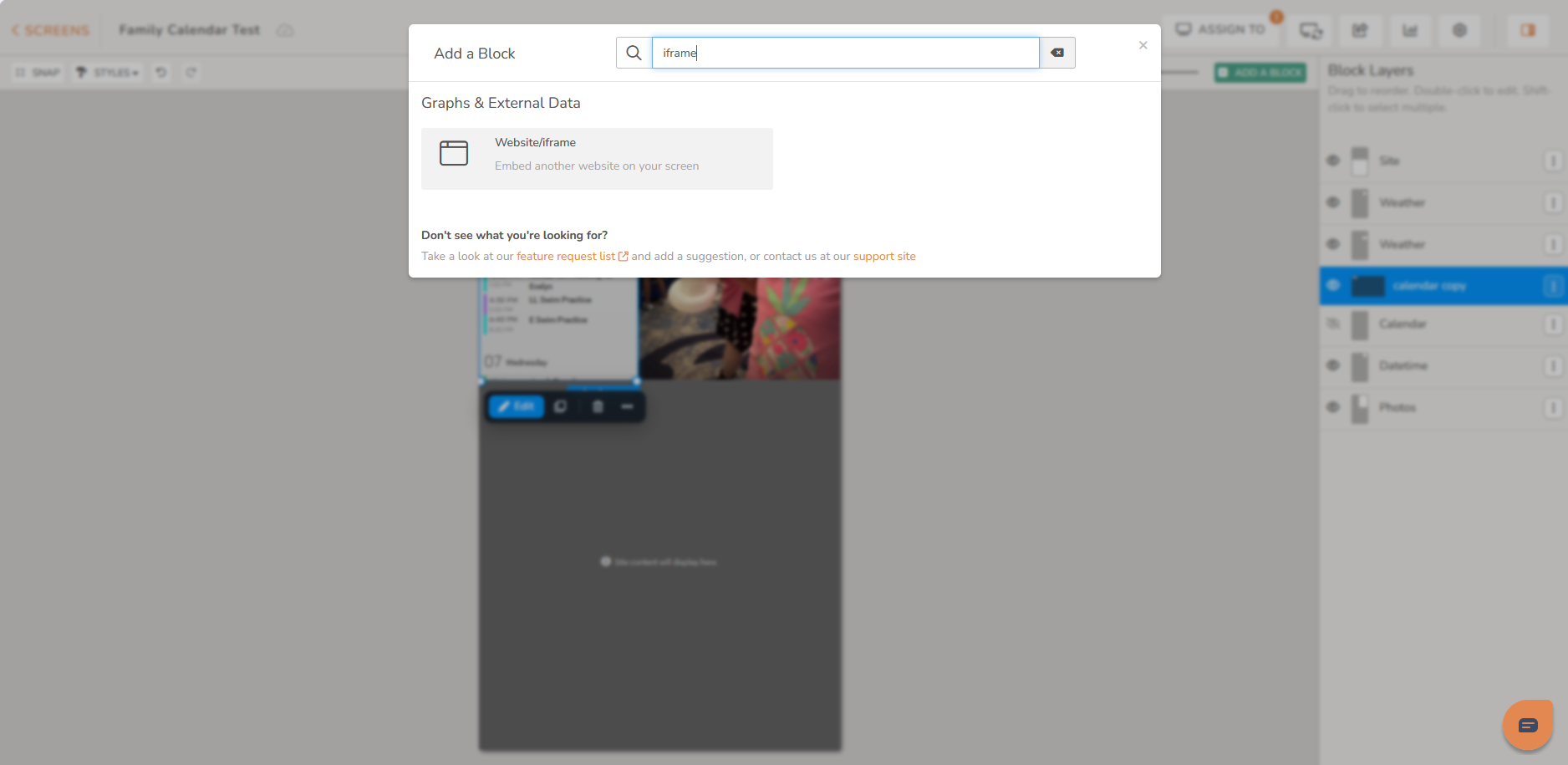
DAKboard’s Website/iframe block is under its external-data options.
Step 3: Point the block to MyChoreBoard
Set the URL to: https://app.mychoreboard.com
Save the block.
That is the entire integration.
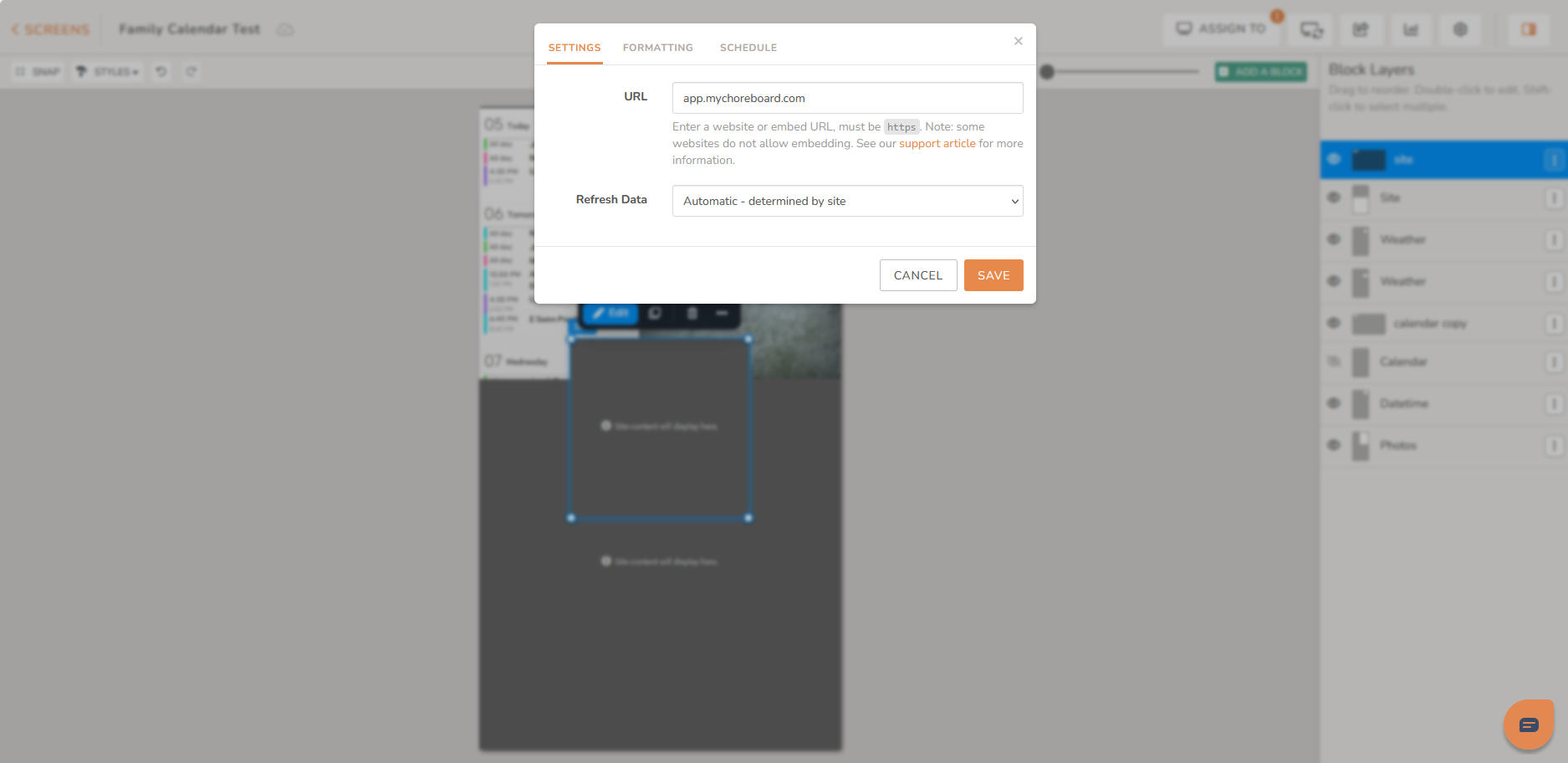
DAKboard’s current security behavior may show the iframe as a placeholder inside the editor rather than loading the live page there. If that happens, use View Screen or the browser preview to see the actual embedded page. DAKboard documents the same behavior in its iframe instructions.
Step 4: Sign in and size the block
Sign in to MyChoreBoard normally, then drag and resize the DAKboard block until it fits the space you want to give it.
This is where MyChoreBoard being designed web-first helps a lot.
The interface was already built to adapt to different browser sizes, so I did not need a special “DAKboard layout.” I could make the MyChoreBoard area wider, narrower, taller, or shorter and let the responsive interface adjust.
If you only want MyChoreBoard, you probably do not need DAKboard
This is an important limitation to understand before paying for anything.
The reason to put MyChoreBoard inside DAKboard is that you want MyChoreBoard to be one part of a larger family dashboard.
If all you want is a dedicated MyChoreBoard WallBoard, I would skip DAKboard entirely and open MyChoreBoard directly in a browser on the display.
DAKboard becomes valuable when the screen also needs to show things such as:
- a family calendar;
- weather;
- family photos;
- Home Assistant;
- news or RSS;
- messages or other household information;
- additional dashboards or apps you want to switch between.
That is why the subscription makes sense for this use case. You are not paying DAKboard to make MyChoreBoard work. You are paying for the dashboard around it.
How much of the screen should MyChoreBoard use?
There is no single correct answer.
The amount of space I would dedicate to MyChoreBoard depends on:
- the physical screen size;
- how many children need to appear at once;
- whether you want a single-child view or WallBoard;
- how many calendar days you want visible;
- whether you also want photos, weather, Home Assistant, or other widgets;
- portrait versus landscape orientation.
That flexibility is the point.
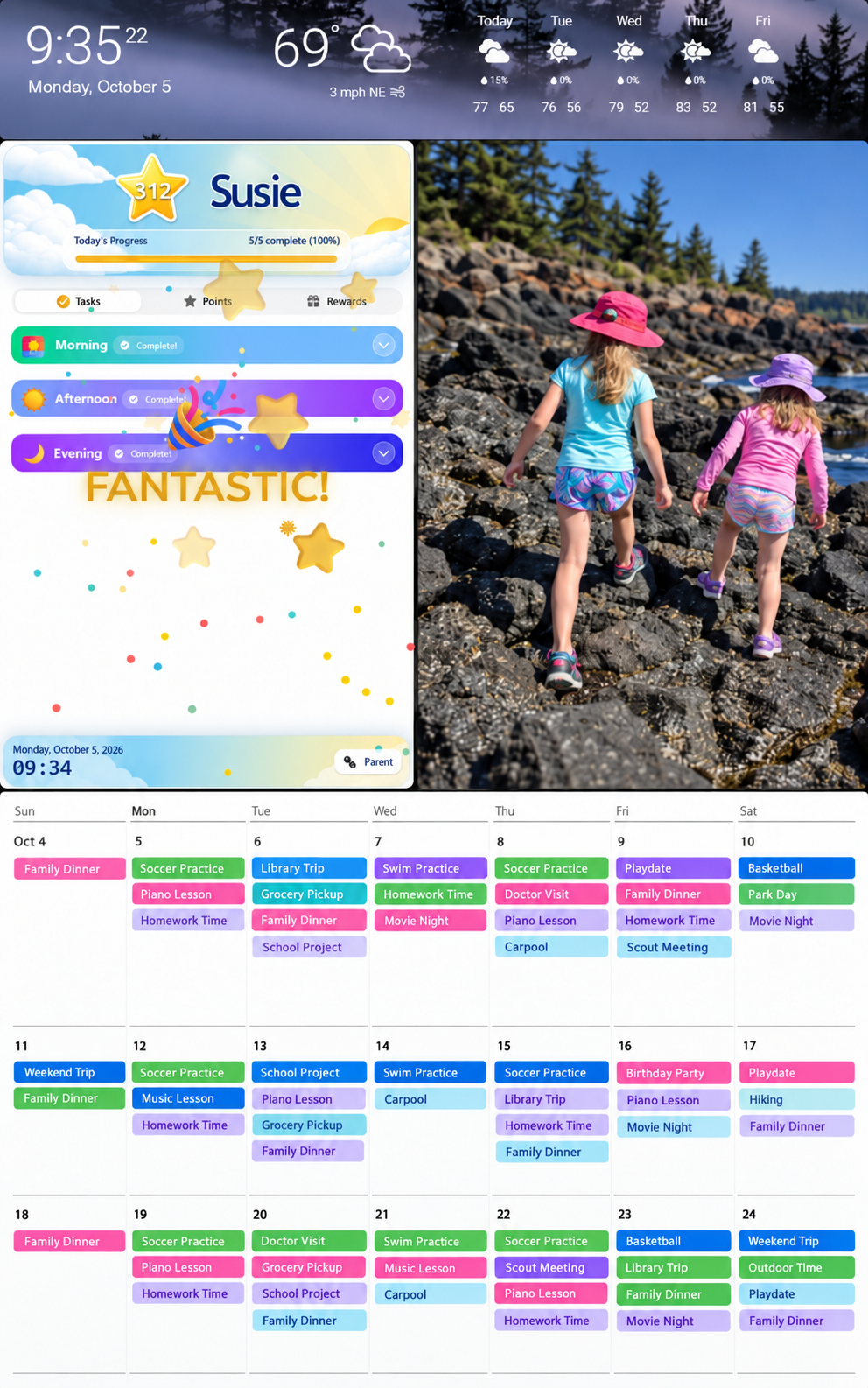
DAKboard can give MyChoreBoard a large part of the display or make it one component of a more information-dense family dashboard.
For a family building a touchscreen from scratch, my starting range would be roughly 17 to 27 inches, depending on budget and how much you want visible simultaneously.
I would also strongly consider a Raspberry Pi 5 if I were building a DIY system today. It gives you the freedom to choose the screen, case, mounting method, orientation, and performance level rather than accepting whatever computer is built into an all-in-one display.
Some MyChoreBoard users have built Raspberry Pi setups around UPERFECT touchscreens in different sizes. I did not use these exact displays for this specific test, so I would treat them as hardware options to compare rather than hands-on recommendations.
If you are shopping for a touchscreen for a DIY DAKboard build, these three sizes give you a useful range from a compact countertop setup to a much larger family command center:
UPERFECT touchscreen options for a DIY DAKboard
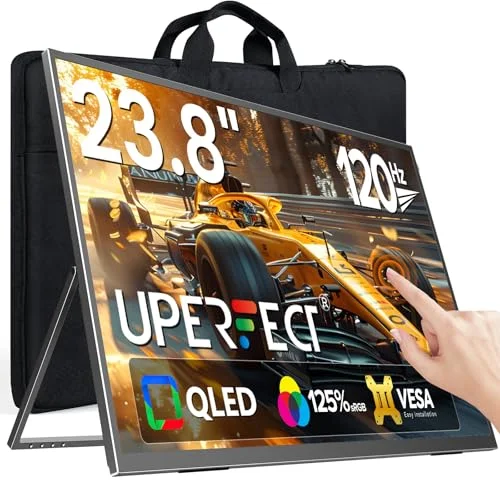
UPERFECT Monitor 24" Touchscreen
UPERFECT 23.8-inch portable 1080p touchscreen monitor
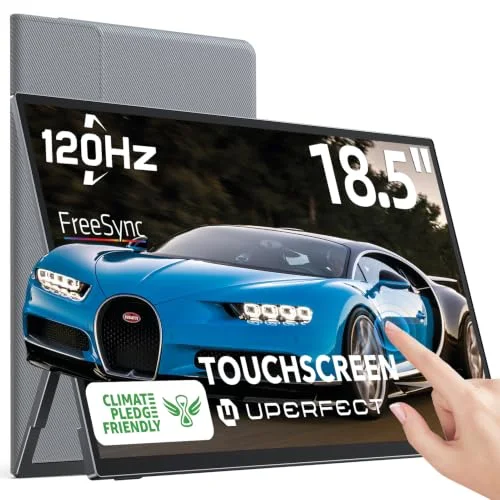
UPERFECT Monitor 18.5-inch Touchscreen
UPERFECT 18.5-inch portable touchscreen monitor
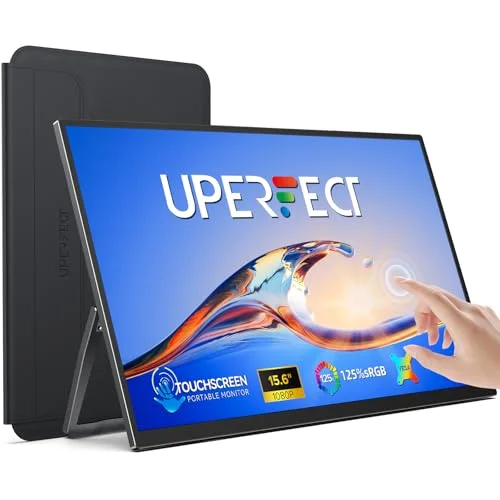
UPERFECT Monitor 15.6 Inch Touchscreen
UPERFECT 15.6-inch portable touchscreen monitor
Affiliate Disclosure: As an Amazon Associate, we earn from qualifying purchases.
TouchHub means you do not have to cram everything onto one screen
One of the newer DAKboard features that makes this much more interesting is TouchHub.
DAKboard describes TouchHub as its touchscreen navigation and app system. You can create a dock that lets you jump between different DAKboard screens and supported apps rather than trying to make one giant layout contain everything.
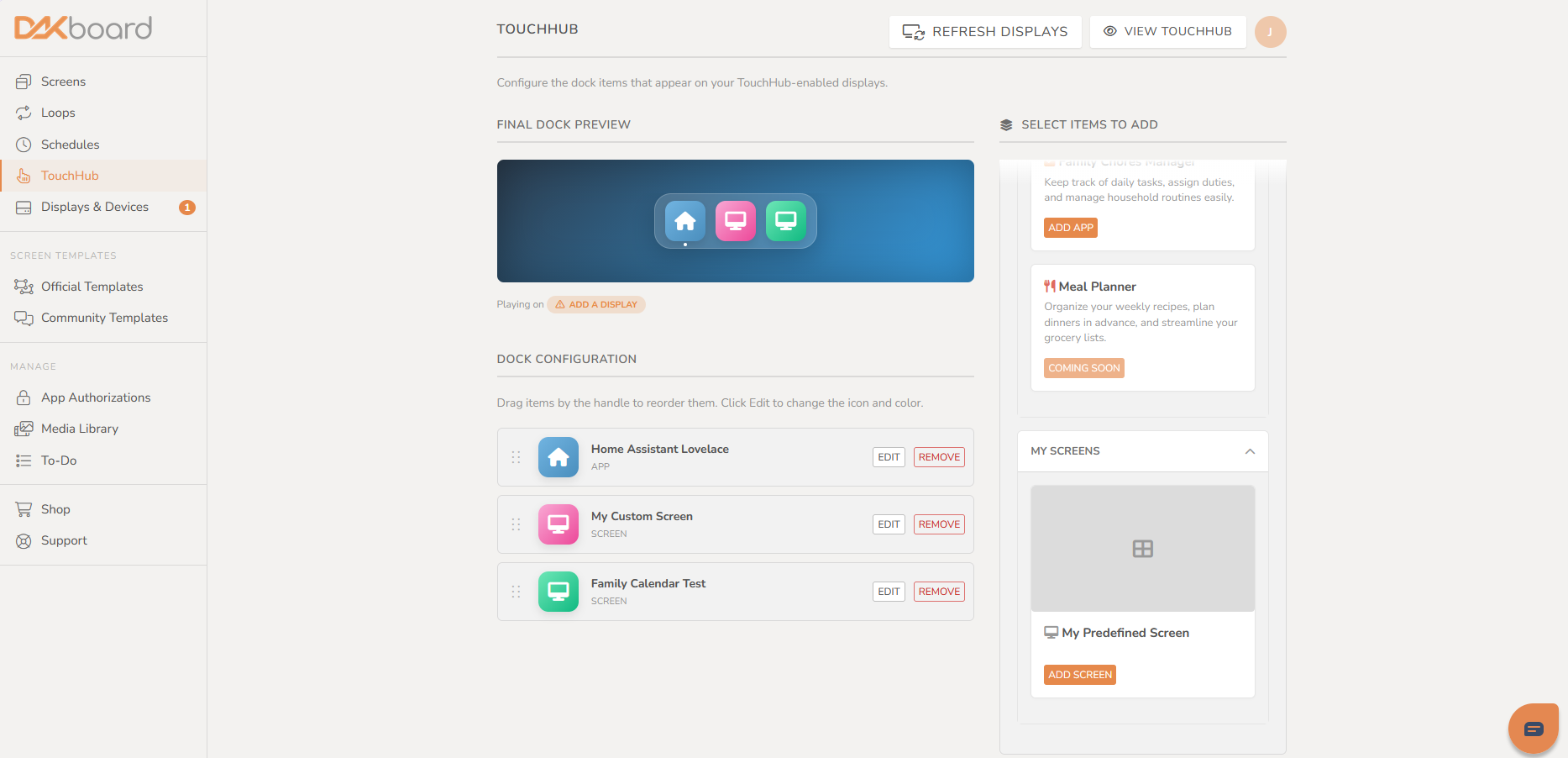
That means you could have:
- one screen centered on the family calendar;
- another screen where MyChoreBoard gets most of the space;
- a Home Assistant view;
- a photo-focused screen;
- a different dashboard for mornings, evenings, or another household workflow.
TouchHub also supports DAKboard’s Home Assistant Lovelace integration and its Family Chores Manager. DAKboard’s TouchHub documentation is worth reading if you are building a touchscreen system.
This is one of the reasons I would not obsess over finding the perfect percentage of screen space for MyChoreBoard. If your hardware supports touch, you can design multiple useful views instead of forcing everything into one layout.
DAKboard is much more powerful than the specific setup I tested
My hands-on use does not cover everything DAKboard can do, and I do not want this article to accidentally make the platform sound like “a calendar with an iframe.”
That undersells it.
DAKboard’s Custom Screens use a drag-and-drop block system. On paid plans, the platform supports custom layouts, integrations, custom CSS, website embeds, widget blocks for third-party HTML/JavaScript, photos, weather, news/RSS, calendar data, video sources, and other content.
DAKboard also documents integrations for things such as Google Sheets, Docs and Slides, while TouchHub can expose a full Home Assistant Lovelace dashboard on a touchscreen.
On the Plus plan, DAKboard adds capabilities such as screen loops and screen scheduling. That means a more advanced household could create entirely different dashboards and have them rotate or change based on time or use case.
I have not personally tested every one of those features.
The point is that DAKboard is better understood as a configurable display platform than as a single family-calendar app.
A family could keep the design simple.
Or someone who enjoys tinkering could turn the same display into a family calendar, chore station, smart-home controller, photo frame, information dashboard, and screen-switching hub.
DAKboard already has a Family Chores Manager
DAKboard has also been expanding its own family tools.
Its Family Chores Manager supports individual family members, one-time and repeating chores, counter chores, points, rewards, a leaderboard, Child Lock, and appearance controls.
I played with it while testing this setup.
My impression is that it is a capable advanced family to-do list with points and rewards, but it does not feel like a purpose-built chore application for kids.
That distinction matters more than whether a feature checklist says both products “have chores.”
DAKboard Family Chores vs MyChoreBoard
| Area | DAKboard Family Chores in my testing | MyChoreBoard |
|---|---|---|
| Primary role | Family dashboard task manager with chores, points, and rewards | Purpose-built chore and reward system for kids |
| Recurring tasks | Yes, with useful recurrence options | Yes, with chore-specific assignment and availability controls |
| Points and rewards | Yes | Yes |
| Shared claimable chores | I did not find an equivalent | Shared Pool Bonus Tasks |
| Required vs optional work | I did not find the same workflow | Required day periods plus optional Bonus Tasks |
| N/A for a day | I did not find an equivalent | Supported for required chores |
| Task instructions / subtasks | More task-list oriented | Instructions or task checklists |
| Advanced optional-work controls | I did not find comparable controls | Cooldowns, day availability, daily limits, multiple completions |
| Child experience | Shared family task interface | Dedicated Child View and WallBoard |
| Reward workflow | Points, rewards, and leaderboard | Rewards, parent fulfillment, child-specific visibility, and Savings Goals |
For a household that wants straightforward recurring chores and a shared scoreboard, DAKboard’s built-in system may be enough.
If you want deeper chore logic, Bonus Tasks, child-specific workflows, advanced recurring chore scheduling, task checklists, or a child interface organized around what to do next, MyChoreBoard is solving a different problem.
Add MyChoreBoard as a Website/iframe block if you want a more chore-focused child experience without giving up your existing DAKboard calendar and dashboard.
Try MyChoreBoard freeThree ways to build a DAKboard family command center
DAKboard is not just a Raspberry Pi project anymore.
There are at least three sensible hardware paths.
1. Build your own with a Raspberry Pi
This is still the option I find most interesting if customization and hardware choice matter.
You can use a Raspberry Pi, choose your own 17-inch, 22-inch, 24-inch, 27-inch, or other display, and decide whether touch is important.
DAKboard currently sells a preloaded Raspberry Pi microSD card if you want to simplify the software side of a DIY build.
If you want to compare a ready-to-use DAKboard OS card and a Raspberry Pi kit through Amazon, these are two options from our product templates:
Raspberry Pi options for a DIY DAKboard
DAKboard-OS Micro SD Card
DAKboard-OS Micro SD Card
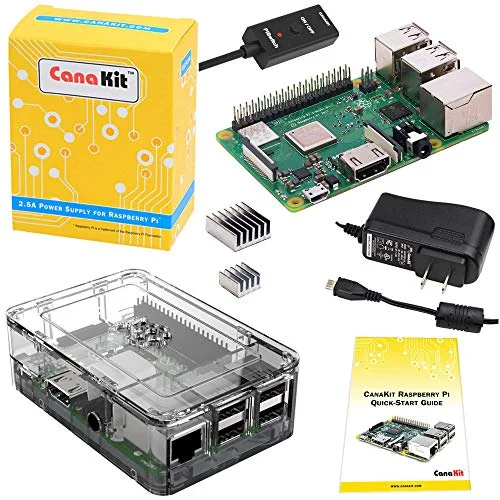
CanaKit Raspberry Pi 3 B+
CanaKit Raspberry Pi 3 B+
Affiliate Disclosure: As an Amazon Associate, we earn from qualifying purchases.
The upside is control.
The downside is that you are assembling a system rather than buying an appliance.
A Raspberry Pi also does not give you the normal Android app ecosystem. You are building around DAKboard, browser-based tools, Home Assistant, and other web-oriented functionality rather than installing Android apps from Google Play.
2. Use a DAKboard CPU with your own screen
DAKboard also sells its own small computers designed to turn an existing monitor or TV into a DAKboard display.
When I checked in October 2026, DAKboard’s store listed:
| Hardware | Price at time checked |
|---|---|
| DAKboard CPU Mini | $99.95 |
| DAKboard CPU v4 | $149.95 |
| DAKboard CPU v5 | $179.95 |
Those prices can change, but this gives you another route between full DIY and a complete wall display.
If you would rather buy the DAKboard computer through Amazon, these are the two CPU models I would compare first for a family command-center build:
DAKboard CPU options
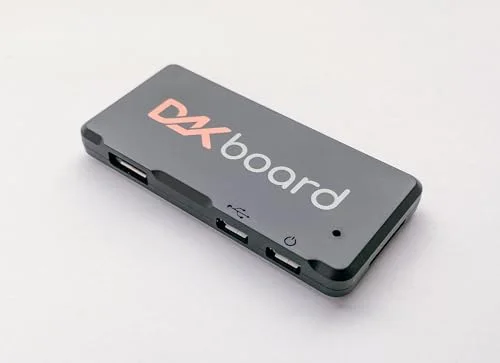
DAKboard CPU Mini
DAKboard CPU Mini with Raspberry Pi Zero 2
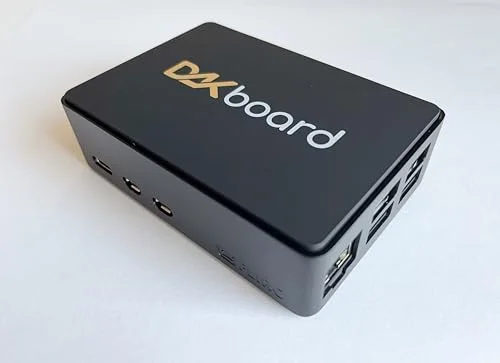
DAKboard CPU v5
DAKboard CPU with Raspberry Pi 5.
Affiliate Disclosure: As an Amazon Associate, we earn from qualifying purchases.
3. Buy a ready-to-go DAKboard touchscreen
If you like DAKboard’s software but do not want to assemble the hardware, DAKboard now sells complete touch displays.
When I checked, the official store listed:
| Display | Price at time checked |
|---|---|
| DAKboard Wall Display Touch 22 | $599.95 |
| DAKboard Wall Display Touch 27 | $799.95 |
The 22-inch model is a 21.5-inch 1080p touchscreen with a built-in CPU, Wi-Fi/Ethernet, speakers, wall mounting, and touchscreen controls.
That is important because DAKboard should no longer be described as something only Raspberry Pi hobbyists can use.
You can still build it yourself.
But you can also buy a fairly appliance-like DAKboard system directly from the company.
DAKboard is flexible, not necessarily cheap
I would not position DAKboard as “the inexpensive family command center.”
It can be inexpensive if you already own a monitor, Raspberry Pi, or other hardware.
But someone can also spend several hundred dollars on a large touchscreen and then pay for the DAKboard subscription.
The better reason to choose DAKboard is control.
You choose the hardware.
You choose the screen size.
You choose portrait or landscape.
You choose the calendar layout.
You choose how much room MyChoreBoard receives.
You choose the background, fonts, colors, photos, integrations, Home Assistant setup, and how many different screens you want available.
That flexibility is what you are buying.
The biggest downside: you have to decide what you want
DAKboard’s greatest strength is also its biggest weakness.
It is so customizable that some people are going to prefer something that simply works out of the box.
I think a normal parent can absolutely configure DAKboard. You do not need to be a programmer to drag blocks around a screen, connect a calendar, or add the MyChoreBoard iframe.
But DAKboard gives you choices.
Lots of them.
You have to decide what hardware to use. You have to decide what the screen should show. You have to size the blocks. You have to choose how your dashboard should behave.
For someone who enjoys that process, DAKboard is fantastic.
For someone who wants to unpack a polished family calendar, sign in, and accept the manufacturer’s layout philosophy, an appliance-style product may be a better fit.
DAKboard vs ApoloSign
After using both approaches, I do not think DAKboard and ApoloSign are really the same kind of product.
DAKboard is the more customizable platform.
ApoloSign is the easier appliance-style product with an open Android side.
DAKboard gives you much more freedom over layouts, hardware, screen size, Home Assistant, blocks, fonts, backgrounds, CSS, and how the dashboard is assembled.
ApoloSign gives you polished hardware, a built-in family-calendar experience, and Android/Google Play without requiring you to design the whole interface yourself.
If your priority is customization, I would lean DAKboard.
If your priority is an easier out-of-the-box family display that can also run Android apps, I would look closely at ApoloSign.
I wrote a separate hands-on ApoloSign family command center review after testing MyChoreBoard on its 15.6-inch model.
There is also some overlap between these ideas. Because DAKboard is fundamentally a web-based display system, you could use different browser-capable touchscreen hardware as the display layer, including hardware that was originally sold for another purpose.
What I would build today
If I were building a highly customizable family command center around DAKboard today, my starting point would be:
- a Raspberry Pi 5;
- a 17-to-27-inch touchscreen based on budget and available wall/counter space;
- DAKboard Essential at minimum for the custom screen and iframe;
- a calendar as the backbone of the dashboard;
- MyChoreBoard embedded for chores and rewards;
- weather and photos where useful;
- Home Assistant if the household already uses it;
- TouchHub if I wanted separate screens rather than one overloaded dashboard.
I would choose portrait or landscape based on the room and the information I wanted visible.
There is no universal “best” layout because the whole advantage of DAKboard is that you do not have to use mine.
My verdict
I have used DAKboard for years because it gives me a degree of control that most family-calendar products do not.
Adding MyChoreBoard did not require a special plugin, API integration, or custom development. I added a Website/iframe block, pointed it at MyChoreBoard, and it worked.
But the integration itself is almost the least interesting part.
The reason the combination makes sense is that the two products have different jobs:
DAKboard gives you the customizable family dashboard. MyChoreBoard gives you the purpose-built chore and reward system.
If your household already uses DAKboard, adding MyChoreBoard is an easy way to make chores a deeper part of the same screen.
If you are starting from scratch, DAKboard makes the most sense when you want something broader than a chore chart: a family calendar, photos, weather, Home Assistant, multiple dashboards, and whatever else you decide belongs on your family’s shared screen.
That is also why I would not recommend paying for DAKboard just to display MyChoreBoard.
Use DAKboard when you want to build a command center.
Use MyChoreBoard directly when you just want the chore system.
Frequently asked questions
Yes. I added MyChoreBoard to a DAKboard Custom Screen with the Website/iframe block and pointed it to https://app.mychoreboard.com. It worked without a custom integration or workaround.
For the custom Website/iframe setup described in this article, yes. DAKboard requires a paid subscription for Custom Screens and website/iframe embeds. Essential is the practical starting plan for this setup.
Probably not. If MyChoreBoard is the only content you want on the display, I would open MyChoreBoard directly in a browser. DAKboard makes sense when you want MyChoreBoard alongside calendars, photos, weather, Home Assistant, or other dashboard content.
Yes. DAKboard has a Family Chores Manager with recurring chores, points, rewards, a leaderboard, and other features. In my testing, it felt more like an advanced family to-do list with points and rewards than a purpose-built child chore system.
Yes. I have used DAKboard for years on a Raspberry Pi-based kitchen display. MyChoreBoard itself is web-based, so the DAKboard integration uses the Website/iframe block rather than a native Raspberry Pi app.
It depends on what you want visible. I would start around 17 to 27 inches. More children, more calendar days, photos, weather, Home Assistant, and other widgets all increase the value of a larger screen.
They solve the problem differently. DAKboard is much more customizable and lets you choose your own hardware and layouts. ApoloSign is more appliance-like and gives you Android/Google Play on the same device. I would choose based on whether customization or out-of-the-box simplicity matters more to you.

Ready to try MyChoreBoard with your kids?
Install on any phone, tablet or computer. Free with no sign-in hoops.