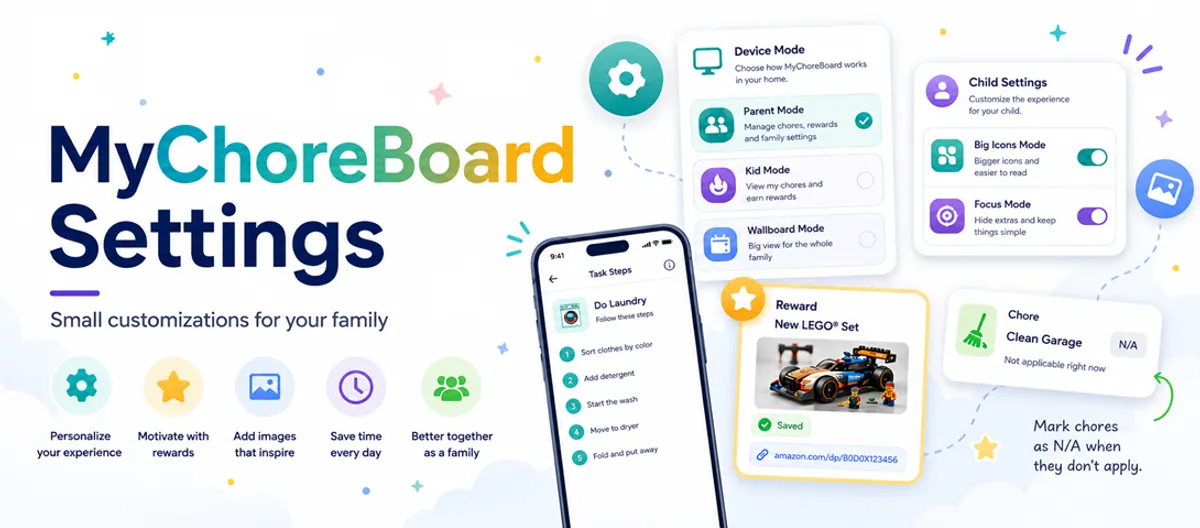
MyChoreBoard Settings: Small Customizations for Your Family
- Jacob Volk
- MyChoreBoard Guides
- 06 Jul, 2026
- Updated 29 Sep, 2026
Most families start with the basics.
Add your kids. Create a few chores. Set up some rewards. Let everyone start checking things off.
That is usually enough to get started, but MyChoreBoard also includes smaller settings that can make a big difference once your family routine is up and running.
Some of these settings help kids understand what a chore actually means. Some make rewards more motivating. Some help younger kids use the app more independently. Others make MyChoreBoard fit better on a shared tablet, wall display, or older device.
For help choosing between a physical family board and a shared tablet, read Digital Chore Charts for Kids.
This guide walks through a few MyChoreBoard settings parents sometimes miss — and how they can help you customize chores, rewards, and routines for your family.
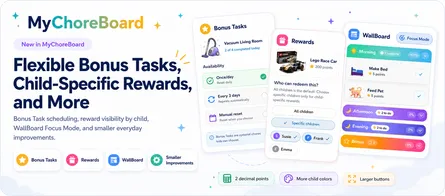
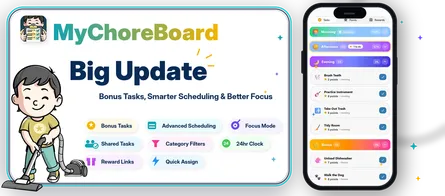
Updated September 2026: This guide now includes task descriptions and Task Checklists, the option to hide empty time periods, English/Spanish/French language settings, Reward Redemption Notifications, Bonus Task day-of-week availability, and saved presets for manual point adjustments.
1. Add a task description or Task Checklist so kids know what “done” means
Some chores sound simple to parents but feel unclear to kids.
“Clean your room” might mean one thing to a parent and something completely different to a child.
A parent may expect clothes in the hamper, toys put away, the bed made, trash thrown out, and the floor cleared.
A child may think: “I moved the stuff into a pile. Done.”
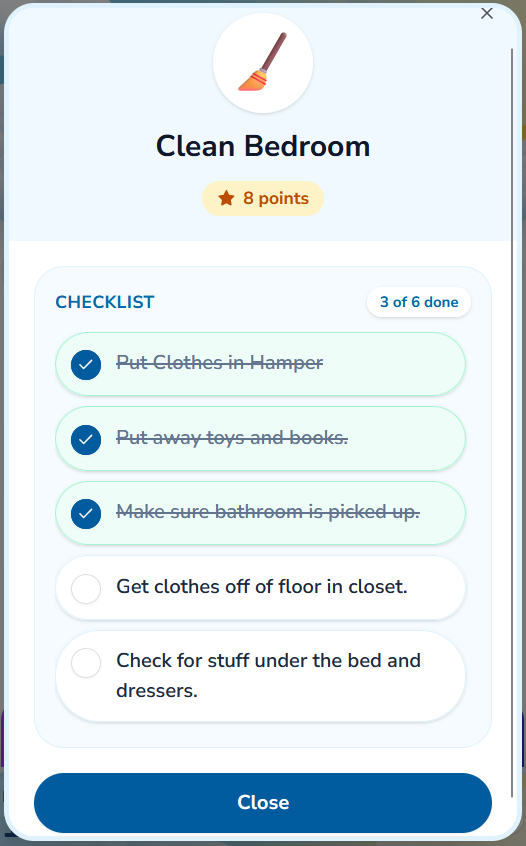
MyChoreBoard lets parents make that expectation clearer in one of two ways: a written description or a Task Checklist.
A description works well when the child mainly needs a reminder, explanation, or a few details about how the chore should be done.
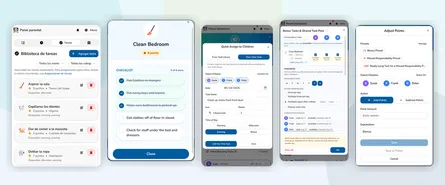
A Task Checklist works better when the chore has several distinct steps the child should complete one at a time. Kids can check off the individual items as they work through the task, and when all of the checklist items are complete, the overall task is completed too.
A task uses either a description or a checklist, so parents can choose the format that makes the most sense for that chore.
For example, a checklist for “Laundry” might include:
- Fold clothes for drawers
- Hang up pants and hoodies
- Put dirty clothes in the hamper
- Bring the empty basket back
A checklist for “Clean Bathroom Counter” might include:
- Put away toothbrush and toothpaste
- Throw away trash
- Wipe the counter
- Hang the towel
Descriptions and checklists are especially useful for:
- New chores
- Younger kids
- Kids with ADHD
- Chores that are often misunderstood
- Tasks that need to be done a specific way
- Morning, bedtime, or getting-ready routines
- Reducing the “I didn’t know” conversation
The goal is not to make every chore more complicated. It is to give kids enough information to understand the expectation without a parent having to repeat the same instructions every day.
If you are still deciding which chores make sense for your child, start with the guide to age-appropriate chores for kids.
2. Use reward photos to make goals feel real
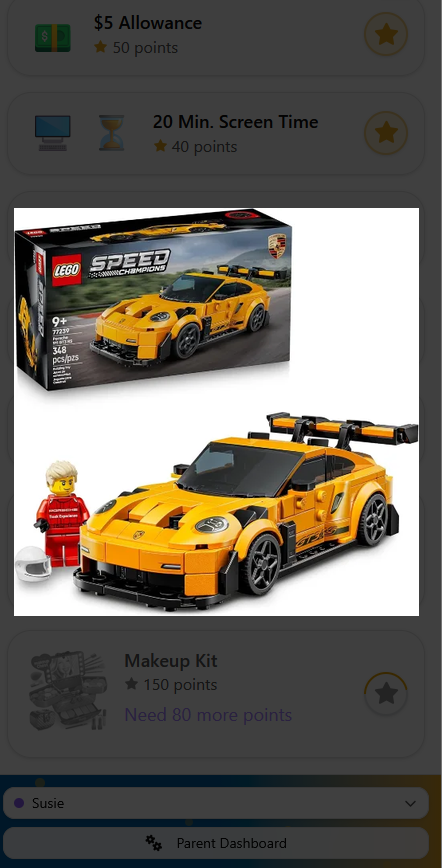
Rewards are more motivating when kids can actually see what they are working toward.
A reward called “toy” or “new game” can feel vague. A reward with a picture of the exact item feels much more concrete.
That is why MyChoreBoard lets parents use an image instead of a basic icon for rewards.
This works well for:
- Toys
- Books
- LEGO sets
- Art supplies
- Sports gear
- Accessories
- Special treats
- Experiences
- Bigger goals a child is saving toward
A visual reward can be especially helpful for younger kids, non-readers, and kids who need a concrete reminder of why the chore routine matters.
Instead of only seeing points, the child can connect those points to something specific:
I am getting closer to that.
This makes the reward system feel less abstract. Kids are not just earning numbers. They are working toward something they recognize, remember, and care about.
For a deeper look at this feature, read Make Rewards Feel Real: Add Photos to MyChoreBoard Rewards.
3. Add product links so parents can save the exact reward
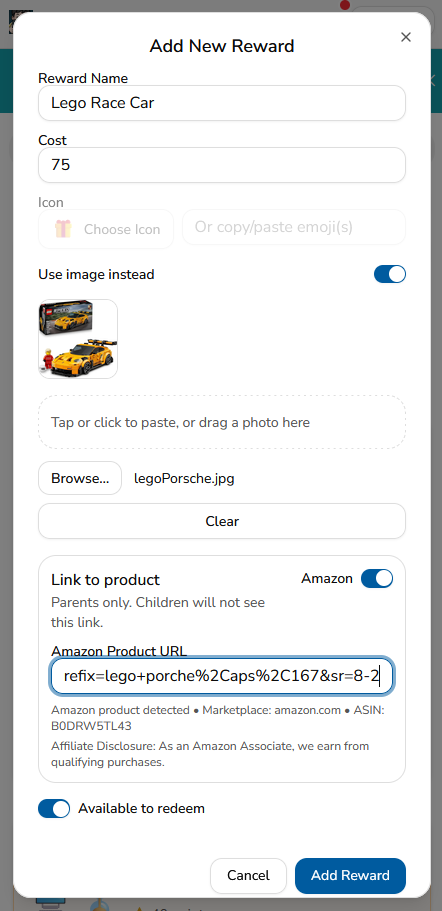
Reward images help kids see the goal. Product links help parents remember the exact goal.
When you create or edit a reward in MyChoreBoard, you can attach a product link to that reward. This is especially useful when a child wants a very specific item.
For example:
- A certain LEGO set
- A particular book
- A specific art kit
- A toy with the exact color or model they wanted
- A backpack charm
- A game accessory
- A gift idea you do not want to lose
The link is for parents only. Children do not see the shopping link.
That keeps the child experience focused on motivation and progress, while giving parents a practical way to save the exact item in one place.
This is helpful because rewards can take time. A child may work toward something for days or weeks. Without a saved link, it is easy to forget which version they wanted or where you found it.
With a reward link, the details stay connected to the reward.
That means when your child finally earns enough points, you are not searching through old texts, browser tabs, screenshots, or wish lists. The reward is already saved where you need it.
For more details, read the full guide on how to add Amazon links to specific rewards.
4. Allow marking as N/A when a chore does not apply
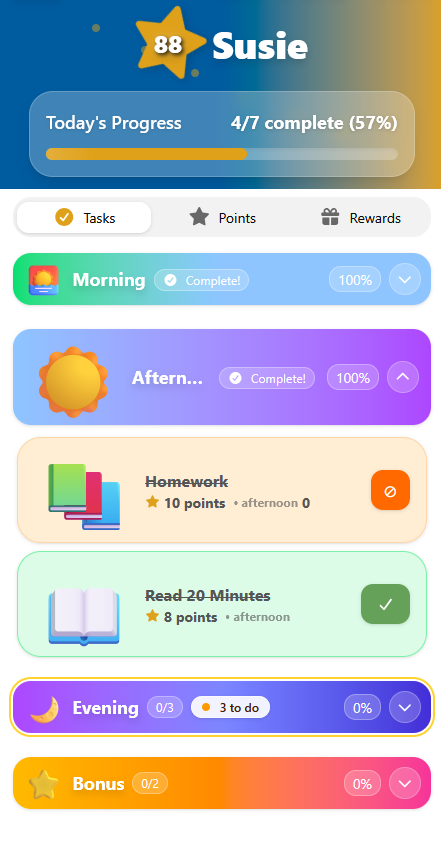
Some chores belong on the schedule, but they do not need to be completed every single time they appear.
That is real family life.
Maybe the trash is not full. Maybe the plants were already watered. Maybe lunch does not need to be packed because school is closed. Maybe someone else already fed the pet.
Without an N/A option, families usually end up with two imperfect choices:
- Make the child complete a chore that does not actually need to be done
- Leave the task incomplete even though there is nothing left to do
MyChoreBoard gives parents another option: Allow marking as N/A.
This lets a task stay part of the routine while still giving the family flexibility when the chore does not apply that day.
This can be useful for chores like:
- Take out trash
- Bring in trash cans
- Water plants
- Feed pets
- Pack lunch
- Put away laundry
- Refill supplies
- Empty dishwasher
- Check backpack
Parents can also decide whether marking a task as N/A gives points or simply marks the task as handled.
That makes N/A useful for families who want structure without turning the chore list into something rigid or unfair.
If you have chores that should appear on a more specific schedule, you may also want to use advanced recurring chore scheduling so tasks show up on the days they are actually needed.
5. Big Icons Mode for younger kids and non-readers
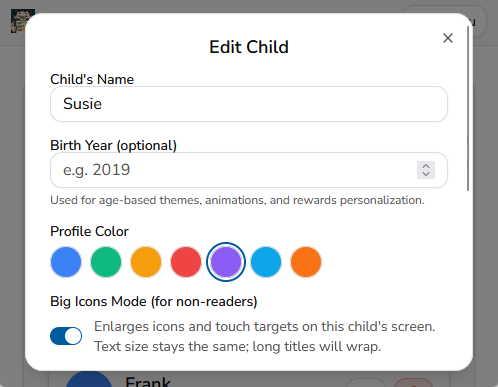
Not every child reads fluently yet. Some kids are just getting started with words. Others understand the routine better when they can recognize a picture, icon, or color before reading the task name.
That is where Big Icons Mode can help.
Big Icons Mode enlarges icons and touch targets on that child’s screen. The text size stays the same, but the larger icons make the child interface easier to scan and easier to tap.
This can be especially helpful for:
- Younger kids
- Early readers
- Kids who respond better to visual cues
- Children using a tablet from a distance
- Families using MyChoreBoard on a shared device or wall display
The goal is simple: make the child’s chore list feel less like a grown-up checklist and more like something they can understand and use on their own.
This also pairs well with visual routines in general. If your child does better with pictures, colors, and simple cues, you may also like this guide on how visual cues help kids stick to routines.
6. Focus Mode for kids who get overwhelmed
Some kids like seeing the full day at once.
Other kids see every morning, afternoon, evening, and bonus chore on the screen and immediately feel overwhelmed.
Focus Mode, also labeled as Reduce Clutter / Focus Mode in child settings, is designed for the second group.
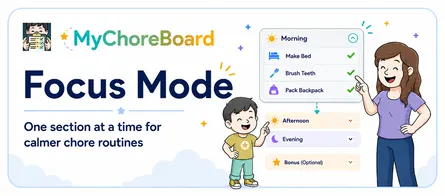
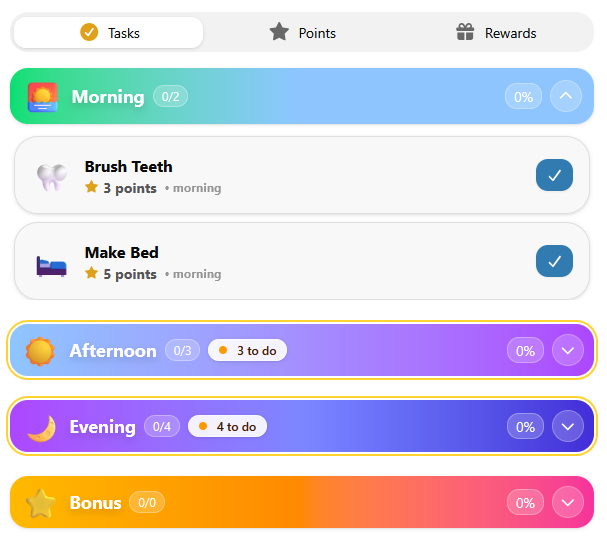
When Focus Mode is turned on, MyChoreBoard starts the day with only the current time period open. As earlier chores are completed, the next section opens automatically. Instead of asking kids to manage the whole day at once, the interface helps them focus on what matters right now.
For many families, that small change can make the routine feel calmer.
Instead of saying: Look at everything you still have to do today. Focus Mode says: Start here.
This is especially helpful for kids who struggle with transitions, attention, task initiation, or long lists. It can also be helpful when you want MyChoreBoard to feel more like a step-by-step routine instead of a full chore chart.
For a deeper walkthrough, read the full guide to Focus Mode in MyChoreBoard.
7. Hide empty time periods for a simpler child screen
Morning, Afternoon, and Evening sections can help kids understand the structure of their day, but not every child has chores in every time period.
Parents can now choose to hide time periods that do not contain any tasks for an individual child.
For example, if a child only has Morning and Evening chores on a particular day, the empty Afternoon section can stay out of the way instead of taking up space on the screen.
This setting is useful when you want to keep the child view focused on the parts of the day that actually need attention. It can be especially helpful for younger kids, children who are easily distracted by extra information, or families with simpler schedules.
The setting is child-specific, so one child can hide empty periods while another child continues to see the full Morning, Afternoon, and Evening structure.
If your family likes seeing the entire daily framework even when a period is empty, you can simply leave this setting off.
8. Savings Goals keep a chosen reward visible
Children spend most of their time on the Tasks screen, but the rewards they were earning were previously kept on a separate tab.
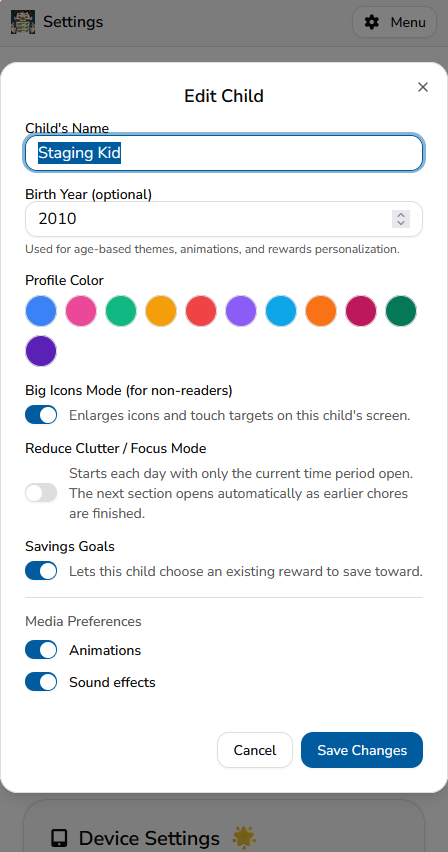
The Savings Goals child setting lets a child choose one existing reward as the goal they want to work toward. Once selected, that reward appears near the top of both the Tasks and Rewards screens with a progress bar, points remaining, and the reward image or icon.
This keeps the reason for earning points visible while the child completes chores.
Savings Goals are enabled separately for each child. To turn the feature on:
- Open Settings in the Parent Dashboard
- Edit the child
- Turn on Savings Goals
- Save the changes
The child can then open the Rewards tab and select Set a savings goal. They choose from rewards a parent has already created and made available to them. The feature does not create a separate point balance, reserve points, or automatically redeem the reward.
See the full walkthrough in A More Motivating Child View: Savings Goals, a Time-of-Day Sky Theme, and More.
9. Device Settings for phones, tablets, web, and shared family displays
Device Settings are easy to miss because they are not about one specific child or chore. They control how MyChoreBoard behaves on the device you are using.
That matters because families often use MyChoreBoard in different places and on different kinds of devices.
A parent may use MyChoreBoard on an iPhone or Android phone. Kids may use an iPad, Android tablet, or Amazon Fire tablet. Another device may sit in the kitchen, mudroom, or family room as a shared chore display, while a computer may use the web app.
Device Settings help each device behave the way your family needs it to.
Language
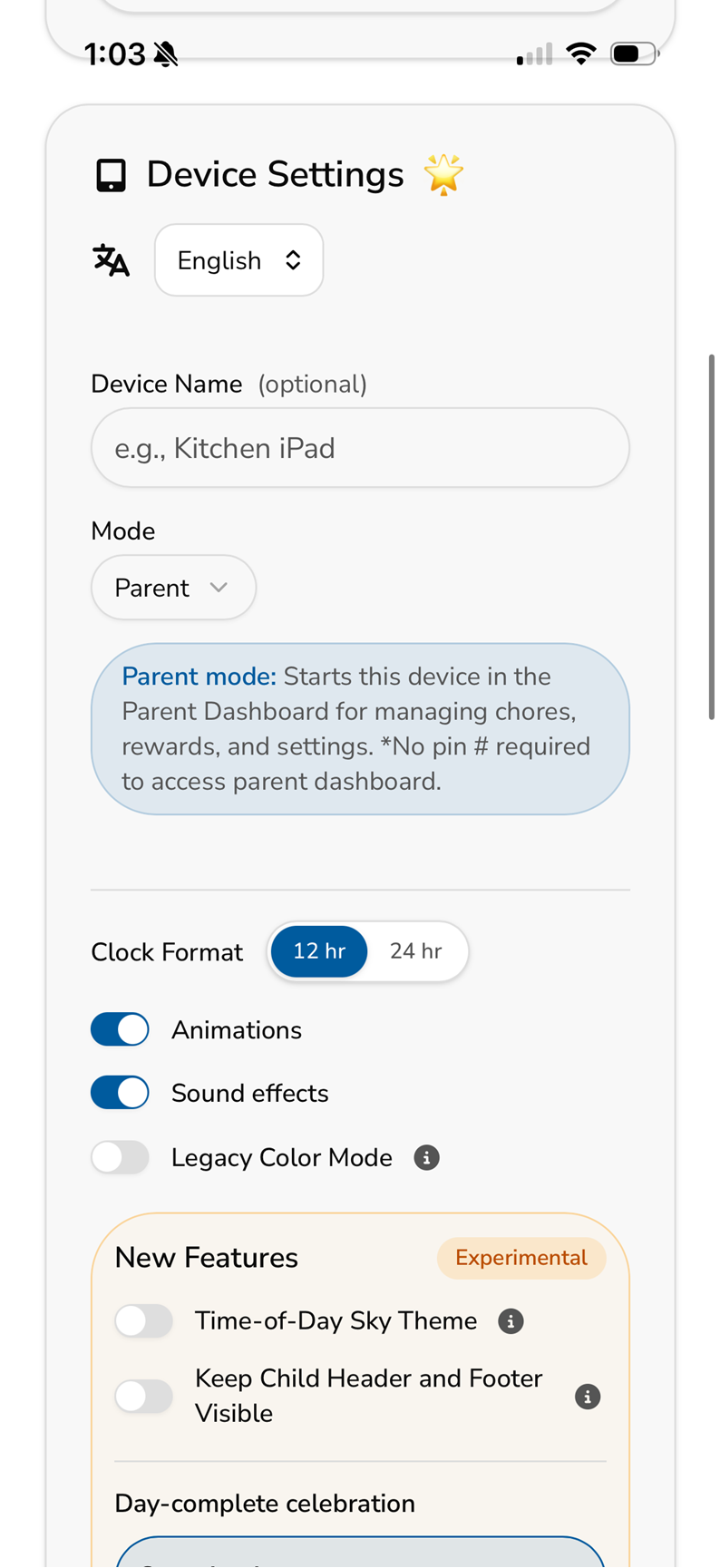
MyChoreBoard is available in English, Spanish, and French.
Language is saved as a device preference, which means different devices in the same family can use different supported languages while staying connected to the same chores, points, rewards, and family information.
For example, a parent could use MyChoreBoard in English while another family device uses Spanish or French.
Choose the language at the top of Device Settings and save your changes. The preference stays with that device until you change it again.
Device Name
The Device Name field is optional, but it can be helpful if you use MyChoreBoard on multiple devices.
For example, you might name devices:
- Kitchen iPad
- Family Room Tablet
- Mom’s Phone
- Kids’ Tablet
This makes it easier to recognize which device settings belong to which screen.
Default Mode
The Mode setting controls what MyChoreBoard opens to on that specific device.
This is useful because not every device in your house needs to behave the same way.
A parent’s phone may be used mostly for setup, approvals, and reward management. A kitchen tablet may be used by the kids throughout the day. A wall-mounted device may be used as a shared family display.
Device Mode lets each one open in the right place.
Parent Mode opens directly to the Parent Dashboard on that device, without asking for the parent PIN each time. This is helpful for a parent-owned phone or tablet where you want quick access to setup, assignments, rewards, and activity history.
Because Parent Mode skips the PIN on that device, it is best for devices that are controlled by a parent, not shared kid devices.
Kid Mode opens directly to the child-facing chore screen. This is helpful when a tablet is mainly used by one child or by the kids during the day.
When you choose a default child, MyChoreBoard can open straight to that child’s chores. You can also prevent the child from switching to another child’s profile.
That helps in two ways.
First, it keeps younger kids from getting confused and looking at the wrong chore list. If the tablet belongs to one child, it can feel like their own personal chore board.
Second, it helps prevent sibling mischief. A child cannot easily switch over to a brother’s or sister’s chores and mark something complete, claim the wrong task, or interfere with someone else’s routine.
WallBoard Mode is best for shared family spaces. Instead of focusing on one child, it gives the family a broader view of what is happening across the household.
This works well on a kitchen tablet, mudroom screen, or family room device where everyone can quickly see what still needs to be done.
This is a small setting, but it can save a lot of daily friction. Instead of switching modes every time the app opens, each device can start in the view that makes the most sense for how it is used.
If you use MyChoreBoard as a shared family display, you may also want to read more about WallBoard Mode.
Clock Format
Device Settings also include a 12-hour / 24-hour clock format option.
Some families prefer 12-hour time. Others use 24-hour time at home, in school, while traveling, or because it is simply clearer for their family.
This setting only changes how time appears on that device, so different devices can use different clock formats if needed.
You can read more about this update in the post covering 24-hour clock support and other setup improvements.
Animations and Sound Effects
Animations and sound effects can make chores feel more fun, especially for younger kids. A little celebration after a completed task can help reinforce progress and make the routine feel rewarding.
But not every child or device needs the same amount of feedback.
Some kids prefer a quieter experience. Some families use MyChoreBoard in shared spaces where sound effects are distracting. Some older devices may also perform better with animations turned off.
Device Settings let you adjust those preferences on each device.
That means your child’s tablet can keep sound effects on, while a wall display or parent phone can stay quieter.
Time-of-Day Sky Theme
The optional Time-of-Day Sky Theme gives the child header and footer a sky-inspired appearance that changes throughout the day.
The header keeps the child’s name, point balance, completed chore count, and daily progress together. The footer keeps the current date, time, child controls, and Parent Dashboard access easy to find.
The theme also works with WallBoard Mode. Because it is a Device Setting, it only changes the phone, tablet, or wall display on which it is enabled. The classic appearance remains the default on devices where the setting has not been turned on.
Keep Child Header and Footer Visible
The Keep Child Header and Footer Visible setting mounts the header to the top of the screen and the footer to the bottom. The child’s chore list scrolls between them.
This can be especially helpful on tablets or dedicated child devices because points, daily progress, the date, time, and navigation controls remain available even when the child has a long task list.
Both display options are covered in the guide to Savings Goals and the new child interface.
Legacy Color Mode
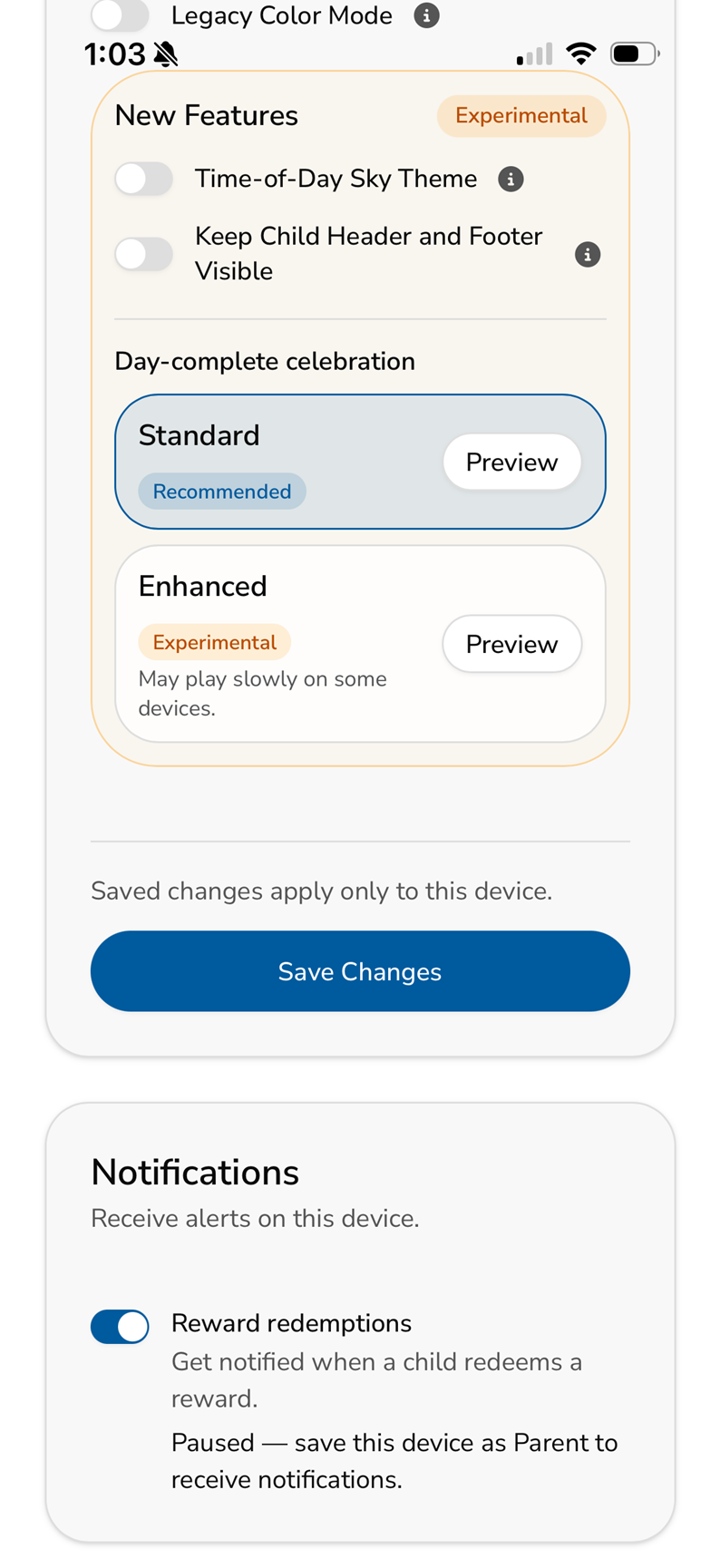
Legacy Color Mode is a compatibility setting for some older tablets and devices.
On certain older devices, the newer MyChoreBoard colors and visual effects may not render correctly. The child-facing screen can look washed out, faded, or harder to read than it should.
Turning on Legacy Color Mode uses a simpler color style that is easier for those devices to display correctly.
Most families will not need this setting. But if the child screen looks unusually washed out or the colors do not look right on an older tablet, Legacy Color Mode may make the interface clearer and easier to use.
Reward Redemption Notifications
MyChoreBoard can send a parent a push notification when a child redeems a reward, but there are a few requirements because notifications are tied to both the device and the phone or tablet operating system.
Reward Redemption Notifications currently work in the native MyChoreBoard app on iOS and Android. They are not available in the web version.
To receive reward notifications on a device:
- Open Device Settings in the native iOS or Android app.
- Set that device’s Mode to Parent and save the change.
- Allow MyChoreBoard notifications in iOS or Android when prompted. If notifications were previously denied, enable them in the device’s operating-system settings.
- In the Notifications card, make sure Reward redemptions is turned on.
All of those pieces matter. A device can have the MyChoreBoard notification toggle turned on but still be unable to receive alerts if the device has not been saved as a Parent device or if notifications are blocked by iOS or Android.
If the Notifications card says that reward notifications are Paused and asks you to save the device as Parent, change the Mode to Parent and save Device Settings first.
Once everything is enabled, that parent device can receive an alert when a child redeems a reward, so the parent does not have to keep checking the Parent Dashboard to see whether something is waiting for attention.
The important thing to remember is that Device Settings apply only to the device you are using. That lets each phone, tablet, browser, or wall display have its own setup — and notification eligibility is evaluated separately on each supported mobile device.
10. Birth Year for age-based personalization
The child settings screen also includes an optional Birth Year field.
This is not required to use MyChoreBoard, but it can help support age-based personalization inside the app. As MyChoreBoard grows, age can help make themes, animations, and rewards feel more appropriate for each child.
A younger child and a teenager may both use the same family chore system, but they may not need the same experience. Younger kids may benefit from more visual encouragement. Older kids may prefer a cleaner, more grown-up interface and reward structure.
Adding a birth year gives MyChoreBoard more context while still keeping setup simple.
You can leave it blank if you prefer, but it is a useful setting for families who want the app to better match each child’s age and stage.
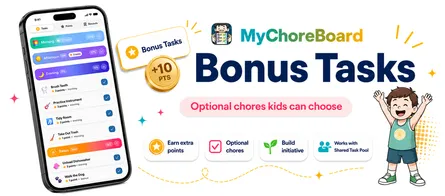
11. Bonus Tasks can fit specific days without cluttering the main routine
Some chores are required. Others are optional.
Instead of adding every possible household job to the daily routine, MyChoreBoard lets parents use Bonus Tasks for extra earning opportunities.
Required chores stay focused on the main routine. Optional chores sit in a separate area where kids can choose extra jobs when they want to earn more points.
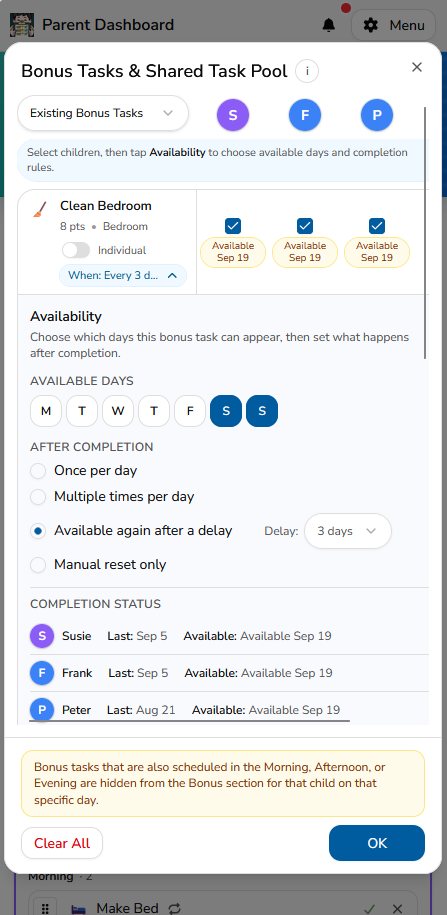
Parents can also choose which days of the week a Bonus Task is available.
That is useful for jobs that only make sense on particular days. A weekend cleanup can appear only on Saturday and Sunday. A trash-related opportunity can be limited to collection day. A school-day Bonus Task can stay off the weekend entirely.
Choosing available days does not make the Bonus Task required on those days. It simply controls when that optional opportunity is eligible to appear.
Bonus Tasks work well for things like:
- Wipe the table
- Take out recycling
- Restock snacks
- Pick up the living room
- Help with laundry
- Sweep the entryway
- Bring in packages
Parents can combine day-of-week availability with the existing completion rules, daily limits, cooldowns, and Shared Pool or Individual Bonus Task options.
For the full walkthrough, read How Bonus Tasks Work in MyChoreBoard.
12. Save presets for manual point adjustments you use often
Not every point change comes from a scheduled chore.
Parents may want to add points for extra effort, kindness, a great attitude, or helping without being asked. They may also use a point deduction when that fits their family’s system.
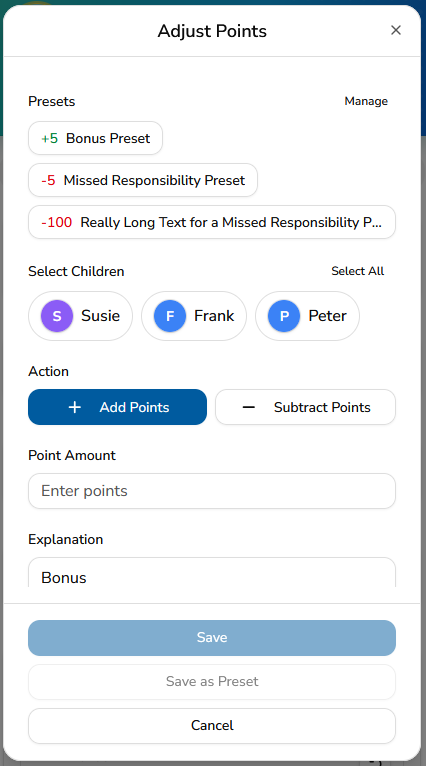
MyChoreBoard’s manual Adjust Points tool lets parents handle those situations, and frequently used adjustments can now be saved as presets.
For example, a family might create presets such as:
- +5 — Great behavior
- +10 — Extra effort
- +5 — Helped without being asked
- -5 — Missed responsibility
Presets are created by the parent, so the names and point values can match the way your own family uses points.
When you are making a manual adjustment, you can choose a saved preset instead of entering the same amount and explanation again. You can also save a new adjustment as a preset when you realize it is something you are likely to use again.
This keeps manual points flexible without making parents repeatedly type the same information.
For more about manual points, read Manually Add & Subtract Points in MyChoreBoard.
Small settings can make the routine feel easier
The best chore system is not always the one with the most features turned on.
It is the one that fits your family.
For one child, that might mean a clear task description, a Task Checklist, reward photos, or a Savings Goal. For another, it might mean Big Icons Mode, Focus Mode, hidden empty time periods, or a quieter device setup. For parents, it might mean language preferences, Reward Redemption Notifications on a Parent device, smarter Bonus Task scheduling, saved point presets, WallBoard Mode, or Legacy Color Mode on an older tablet.
These smaller MyChoreBoard settings are easy to overlook, but they can make the app feel more personal, more flexible, and easier to stick with.
Start with the basics. Then adjust the small things.
That is often where the routine starts to feel like it truly belongs to your family.
Frequently asked questions
MyChoreBoard settings help parents customize how chores, rewards, child screens, devices, languages, and notifications work. Some settings are child-specific, like Big Icons Mode, Focus Mode, hiding empty time periods, and Savings Goals. Others are device-specific, like language, Default Mode, clock format, display options, sounds, and supported reward notifications.
A task can use either a written description or a Task Checklist. A description is useful for a reminder or explanation. A Task Checklist is better for multi-step chores because kids can check off each step as they work, and completing all checklist items completes the overall task.
Yes. Parents can add reward photos so kids can see the specific item, experience, or goal they are working toward. This can make rewards feel more real and motivating, especially for younger kids and visual learners.
No. Product links are for parents only. Kids can see the reward and track their progress, but the shopping link stays on the parent side so parents can save the exact item without showing the link to the child.
Parent Mode opens directly to the Parent Dashboard on that device without asking for the parent PIN each time. It is intended for a parent-controlled device and is also required on a supported iOS or Android device before that device can receive Reward Redemption Notifications.
Reward Redemption Notifications work in the native MyChoreBoard app on iOS and Android, not the web version. Save the device in Parent Mode, allow MyChoreBoard notifications in the iOS or Android operating-system settings, and turn on Reward redemptions in the MyChoreBoard Notifications card.
Yes. MyChoreBoard supports English, Spanish, and French, and language is saved as a device preference. Different devices in the same family can use different supported languages while sharing the same family data.
Yes. In Kid Mode, parents can choose a default child and prevent switching to another child’s profile. This helps younger kids avoid looking at the wrong chore list and helps prevent siblings from interacting with another child’s chores.
Yes. Parents can choose, per child, to hide time periods that do not contain tasks. This can make the child screen simpler while allowing another child in the same family to keep the full daily structure visible.
Open the Parent Dashboard, go to Settings, edit the child, and turn on Savings Goals. The child can then choose one existing reward from the Rewards tab and keep its progress visible on the Tasks screen.
Yes. Parents can choose which days of the week a Bonus Task is available. The selected days control when that optional opportunity can appear; they do not make the Bonus Task a required chore.
Manual point adjustment presets let parents save point amounts and explanations they use often, such as a bonus for extra effort or a deduction for a missed responsibility. A saved preset can be selected later instead of entering the same information again.
Legacy Color Mode is meant for some older tablets or devices where newer visual effects do not render correctly. If the child-facing screen looks washed out, faded, or hard to read, Legacy Color Mode may make the interface clearer.
N/A is used when a chore appears on the schedule but does not apply that day. For example, the trash may not be full, the plants may already be watered, or school may be closed so lunch does not need to be packed.

Ready to try MyChoreBoard with your kids?
Install on any phone, tablet or computer. Free with no sign-in hoops.