A More Motivating Child View: Savings Goals, a Time-of-Day Sky Theme, and More
- Jacob Volk
- Product Updates , MyChoreBoard Guides
- 14 Aug, 2026
The child interface is where kids spend most of their time in MyChoreBoard.
It is where they see what needs to be done, check off chores, earn points, and watch their daily progress grow. But until now, one important part of that motivation was mostly kept on a separate screen: the reward they were working toward.
This update brings chores, progress, and motivation closer together.
MyChoreBoard’s updated child interface now includes:
- Savings Goals that keep a chosen reward visible on the Tasks screen
- A new Time-of-Day Sky Theme for the child header and footer
- An option to keep the child header and footer visible while scrolling
- Matching visual improvements for WallBoard Mode
If you already use MyChoreBoard, these updates are available now.
What’s new in this release
Savings Goals
Keep the reward in sight
Let a child choose one reward and see their progress toward it from the Tasks screen.
Time-of-Day Theme
A child view with more personality
Use a sky-inspired header and footer that change as the child moves through the day.
Stationary Layout
Keep progress and controls visible
Mount the header and footer while the chore list scrolls between them.
Savings Goals keep the reward connected to the chores
Previously, children could visit the Rewards tab to see what was available, but most of their daily time was spent on the Tasks tab.
That meant the chores were always visible, but the reason for earning the points could easily move out of sight.
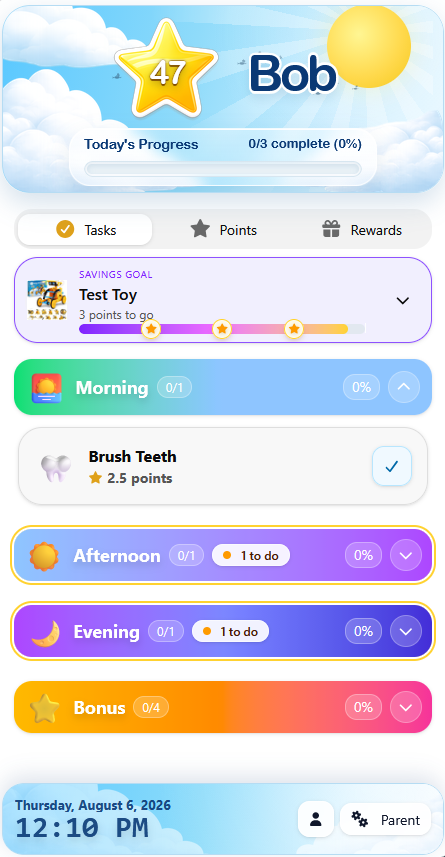
With Savings Goals, a child can choose one reward to work toward and keep that goal visible while completing chores.
The Savings Goal card can show:
- The name of the chosen reward
- The reward image or icon
- The child’s current points
- The number of points still needed
- A visual progress bar with milestones along the way
The child can expand the card to see the full reward image and detailed progress or collapse it into a smaller card that takes up less space. Either way, the goal stays near the top of the Tasks screen as a reminder of what those daily chores are helping them accomplish.
Instead of earning points that feel disconnected from anything specific, the child can see:
I am only three points away from the reward I chose.
That turns each completed chore into visible progress toward something meaningful.
Parents decide which children can use Savings Goals
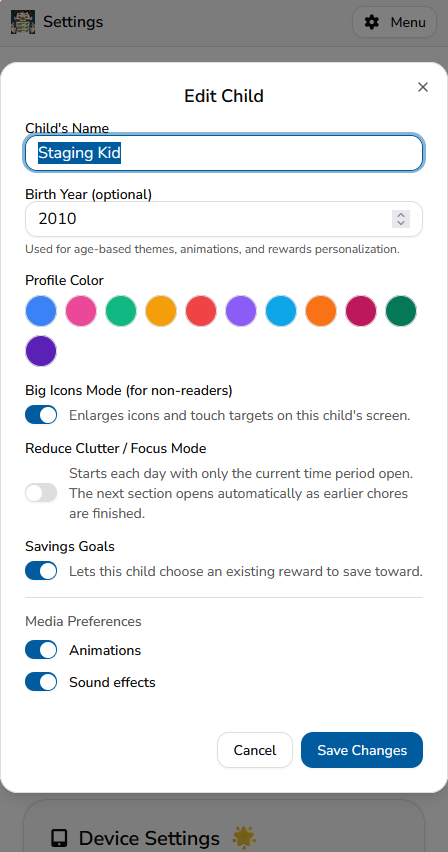
Savings Goals are enabled separately for each child.
To turn the feature on:
- Open the Parent Dashboard
- Go to Settings
- Edit the child
- Turn on Savings Goals
- Save the changes
This gives parents control over when the feature makes sense.
One child may be ready to save toward a larger reward, while another may respond better to smaller rewards that can be earned more quickly. Each child can have a setup that matches their age, personality, and current motivation.
Savings Goals can also work well alongside Focus Mode. Focus Mode helps a child concentrate on the chores that matter right now, while the Savings Goal provides a visible reminder of what completing those chores is building toward.
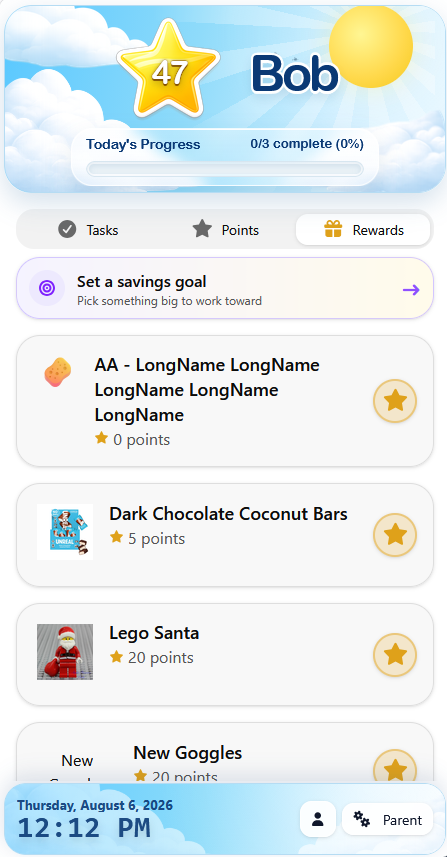
Children choose from rewards parents have already created
Once Savings Goals are enabled, the child can open the Rewards tab and select Set a savings goal.
The child chooses from the existing rewards already available to them. They are not creating a new reward, changing its point value, or making a purchase. Parents still control which rewards are available and how many points each reward costs.
After the child chooses a goal, it appears on both the Rewards and Tasks screens.
Choosing a Savings Goal also does not move points into a separate account or automatically redeem the reward. It simply highlights one existing reward as the child’s current target. The child continues earning and using their normal MyChoreBoard point balance.
Once the child has enough points, the reward can be redeemed through the normal reward process.
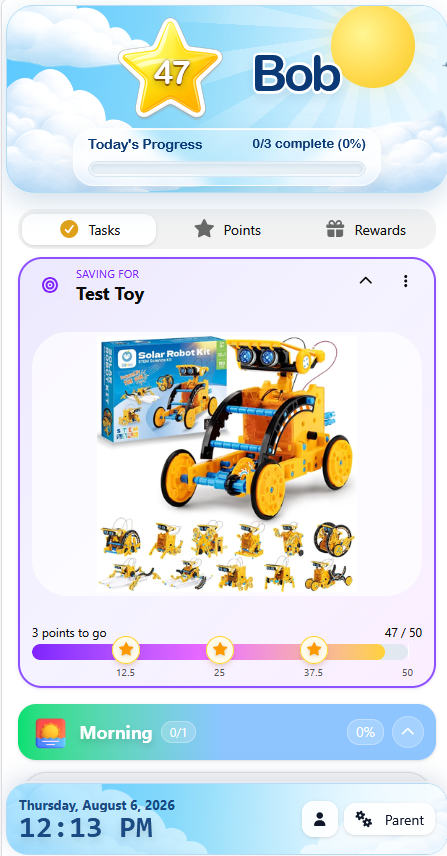
Reward images make Savings Goals even more motivating
Savings Goals are especially effective when the reward includes an image.
A child may not feel very excited about a card that simply says “new toy.” A picture of the exact LEGO set, art kit, book, pair of goggles, special outing, or other reward makes the goal much more concrete.
The expanded Savings Goal card gives that image a prominent place on the child’s screen, helping the child connect today’s effort with the reward they selected.
If you have not added images to your rewards yet, read Make Rewards Feel Real: Add Photos to MyChoreBoard Rewards.
Parents can also save a product link with a reward so the exact item is easy to find later. The shopping link remains on the parent side while the child sees the image and progress toward the reward. Learn more about adding product links to specific rewards.
A sky theme that changes throughout the day
This release also introduces a new visual style for the child interface.
The optional Time-of-Day Sky Theme gives the header and footer a sky-inspired appearance that changes based on the time of day. This helps the screen feel more connected to the child’s daily routine instead of looking exactly the same from morning through evening.
The new header keeps important information together:
- The child’s name
- Current point balance
- Today’s completed chore count
- Overall daily progress
The footer keeps the current date, time, child controls, and Parent Dashboard access easy to find.
The goal is not simply to add decoration. The updated design makes the most important information easier to recognize at a glance while giving the child interface more personality.
The classic appearance remains the default, so families can turn on the new theme only on the devices where they want to use it.
Keep the child header and footer visible while scrolling
Some children have longer task lists, especially when Morning, Afternoon, Evening, and Bonus sections are all available.
The new Keep Child Header and Footer Visible option mounts the header to the top of the screen and the footer to the bottom. The chore list then scrolls between them.
This means children can continue seeing their:
- Name and current points
- Daily completion progress
- Date and time
- Child and parent navigation controls
They do not have to scroll back to the top or bottom of a long chore list to find that information.
This option is especially useful on tablets and shared displays where MyChoreBoard functions as a dedicated digital chore chart throughout the day.
It is also optional. Families who prefer to give the chore list the maximum possible screen space can leave the setting turned off.
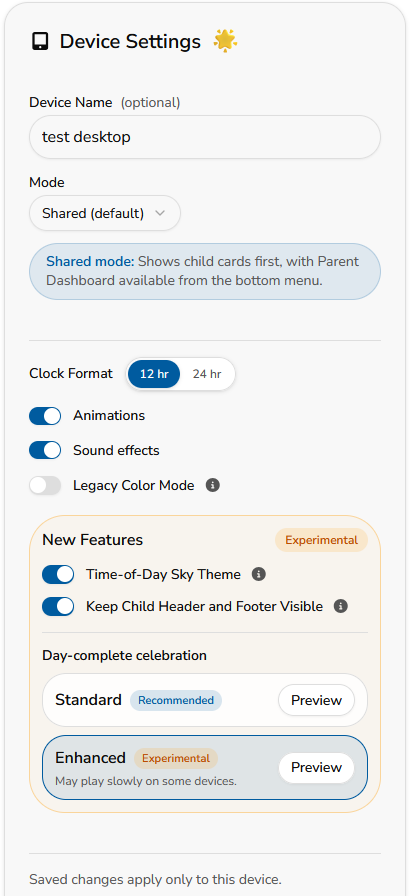
Child settings and Device Settings work differently
These new options are located in two different places because they control different parts of the experience.
Savings Goals follow the child because they are part of that child’s reward experience.
The theme and stationary header and footer are device-specific. A kitchen tablet can use the new theme and mounted layout while a parent’s phone or an older child’s device uses a different setup.
To enable the display options:
- Open Settings
- Find Device Settings
- Turn on Time-of-Day Sky Theme
- Turn on Keep Child Header and Footer Visible if desired
Changes made in Device Settings apply only to the device currently being used. If you want the same appearance on another phone, tablet, or wall display, enable the options on that device too.
For more ways to customize individual children and family devices, see the complete guide to MyChoreBoard settings.
| Feature | Where it is enabled | What it affects |
|---|---|---|
| Savings Goals | Edit Child settings | The selected child |
| Time-of-Day Sky Theme | Device Settings | Only the current device |
| Keep Child Header and Footer Visible | Device Settings | Only the current device |
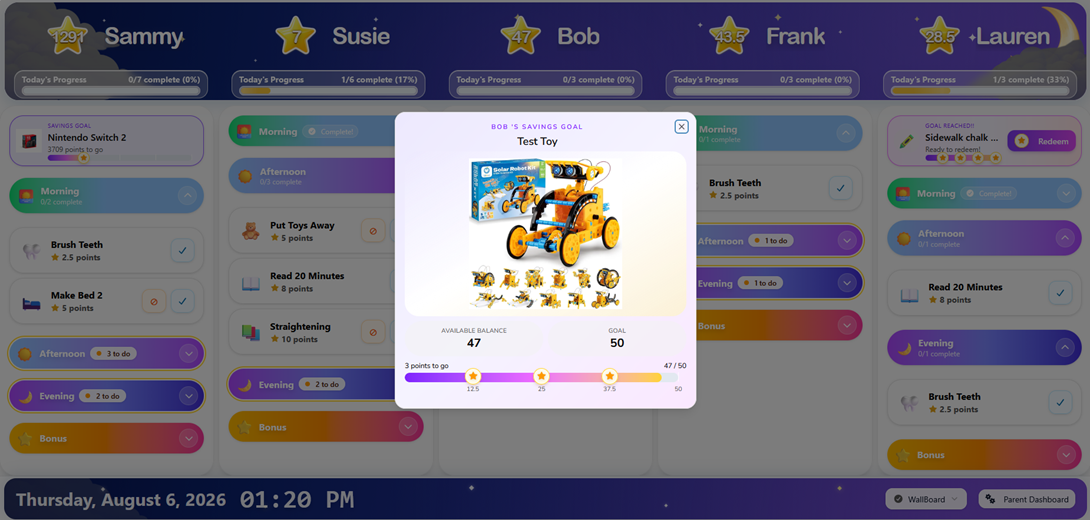
The new theme also works with WallBoard Mode
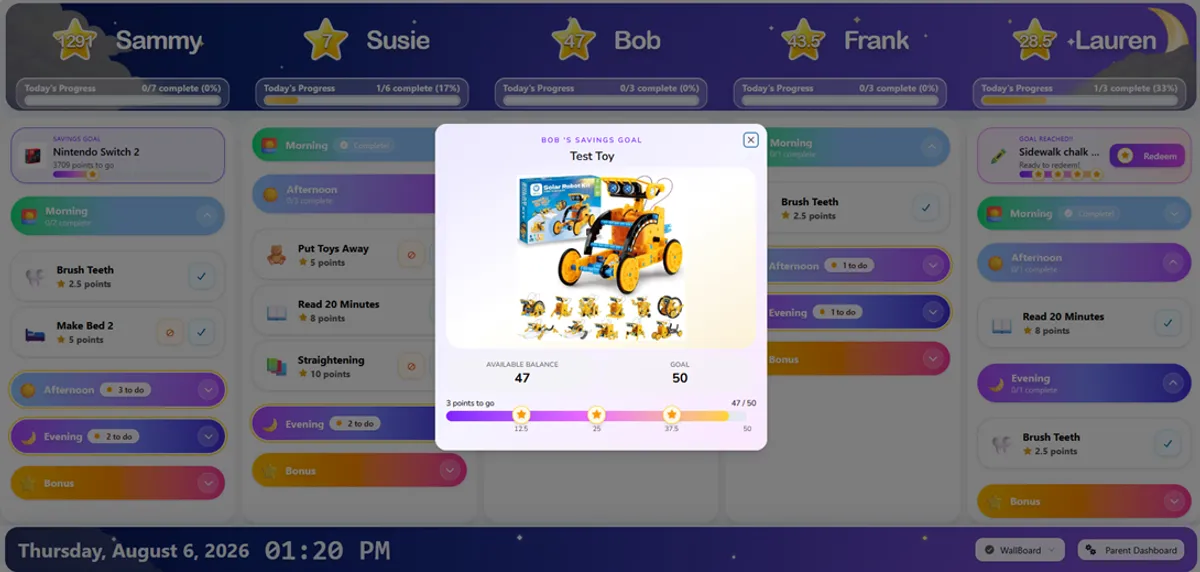
The Time-of-Day Sky Theme carries over to WallBoard Mode, giving a shared family display the same updated visual style.
On WallBoard, the new header makes each child’s name, points, and daily progress easy to scan across the top of the screen. The updated footer frames the shared display with the current date, time, and navigation controls.
Savings Goals can also appear near the top of each participating child’s column. This lets the entire family see not only which chores remain, but what each child has chosen to work toward.
Some children may have an active Savings Goal while others do not. Because Savings Goals are controlled separately for each child, the WallBoard can reflect those individual choices without requiring every child to use the feature.
If you use a tablet or screen as a shared family command center, read the full guide to WallBoard Mode in MyChoreBoard.
Choosing a Savings Goal that keeps a child motivated
A Savings Goal works best when the child actually cares about the reward and can make steady progress toward it.
A few tips can help:
- Let the child choose. A parent can create the reward options, but the child’s choice creates more ownership.
- Keep the goal achievable. A reward that takes too long to reach may stop feeling real.
- Use an image. A specific visual reminder is more motivating than a vague reward name.
- Mix short- and long-term rewards. Keep a few smaller options available alongside bigger goals.
- Celebrate progress. Notice when the child reaches milestones instead of waiting until the final redemption.
- Adjust when interests change. If a reward no longer matters to the child, let them choose something that does.
Rewards work best when they reinforce effort and follow-through instead of becoming a last-minute negotiation. For more guidance, read How Positive Reinforcement Builds Motivation and Responsibility in Kids.
More than a new look
This update gives the child interface a more colorful and engaging appearance, but the larger goal is motivation.
The child screen now does a better job of answering three important questions:
- What do I need to do?
- How much progress have I made?
- What am I working toward?
The daily chore list answers the first question. The new header and progress displays answer the second. Savings Goals keep the answer to the third question visible.
Together, these changes help MyChoreBoard feel less like a list of chores and more like a clear path from effort to accomplishment.
Frequently asked questions
Open the Parent Dashboard, go to Settings, edit the child, and turn on Savings Goals. The feature can be enabled separately for each child.
Once a parent enables the feature, the child opens the Rewards tab, selects Set a savings goal, and chooses from the existing rewards available to them.
No. Children choose from rewards that a parent has already created and made available to them. Parents continue to control reward names, images, point values, links, redemption, and fulfillment.
No. A Savings Goal uses the child’s normal MyChoreBoard point balance. Choosing a goal does not create a separate savings account, reserve points, or automatically redeem the reward.
Yes. Children with an active Savings Goal can have their goal and progress shown near the top of their WallBoard column.
Open Device Settings and turn on Time-of-Day Sky Theme. You can also turn on Keep Child Header and Footer Visible if you want them mounted to the screen while the chore list scrolls.
No. Device Settings apply only to the device on which they are changed. This allows each phone, tablet, or WallBoard display to have its own configuration.
Yes. The classic appearance remains the default. The Time-of-Day Sky Theme and stationary header and footer are optional and can be enabled separately on each device.

Ready to try MyChoreBoard with your kids?
Install on any phone, tablet or computer. Free with no sign-in hoops.